Overview - Understanding SageNova LMS concepts
Estimated time: 19 minutes
This guide explains the ideas that tie the main parts of SageNova together. Understanding these concepts makes it easier to grasp the platform as a whole and enables full capability utilization.
About class, lecture, and academic year scoping
SageNova organizes teaching around four connected ideas: subjects, classes, lectures, and the academic year.
A class is a group of students in the same grade mostly reflecting real-life school classes. It has a grade, a name, a status, and a list of teachers and students. A class can be Draft, Active, Archived, or Inactive. Only Active or Draft classes can be added to a new lecture. Archived and Inactive classes are kept out of the way of daily teaching activities.
A lecture is the actual teaching session. It is where a subject, an academic year, one or more classes, and the teachers come together. For example, Mathematics 8/A (2028/2029 — First semester) is a lecture. The name usually comes from the subject, the class, and the semester it belongs to, but can be customized.
A student sees a lecture when their class is added to the lecture or they are listed as an Individual student in the lecture. A teacher can access a lecture when they are a primary teacher, an assistant teacher, or a teaching assistant. Assistant teachers and Individual student could be set to audit in which case they get a read-only view.
The academic year sets the time frame for the whole school. Subjects are the academic content. Announcements, Study material, Challenges posted inside a lecture reach the students in that lecture. Posted to the school-wide announcements board, they reach everyone in the active academic year.
A lecture or class status is not just a label. It controls what you can see and do:
- Draft lets teachers prepare before students can see anything.
- Active means the lecture/class is live and everyone enrolled can use it.
- Archived keeps the record visible for reference but limits changes.
- Inactive is the most restricted state where it's unlisted from all users except system admins.
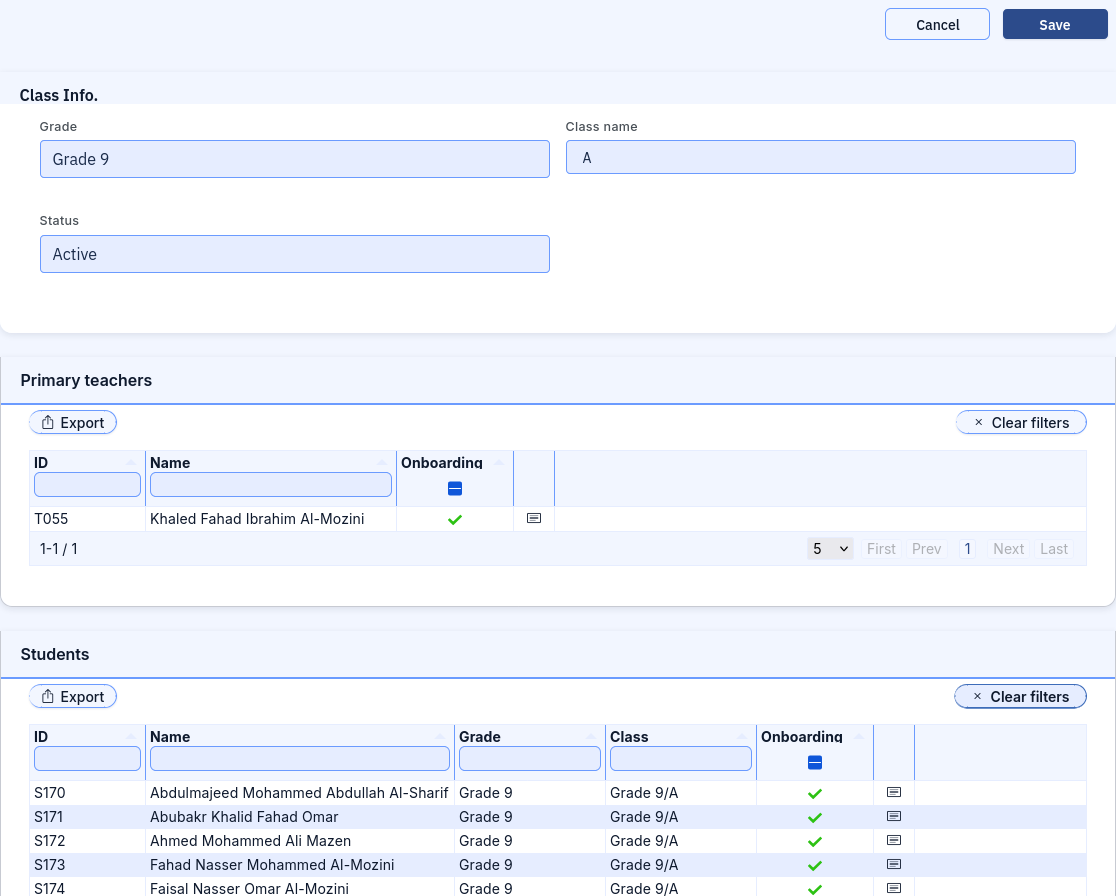
Exhibit 1.1: A class groups students from the same grade, just as in real life.
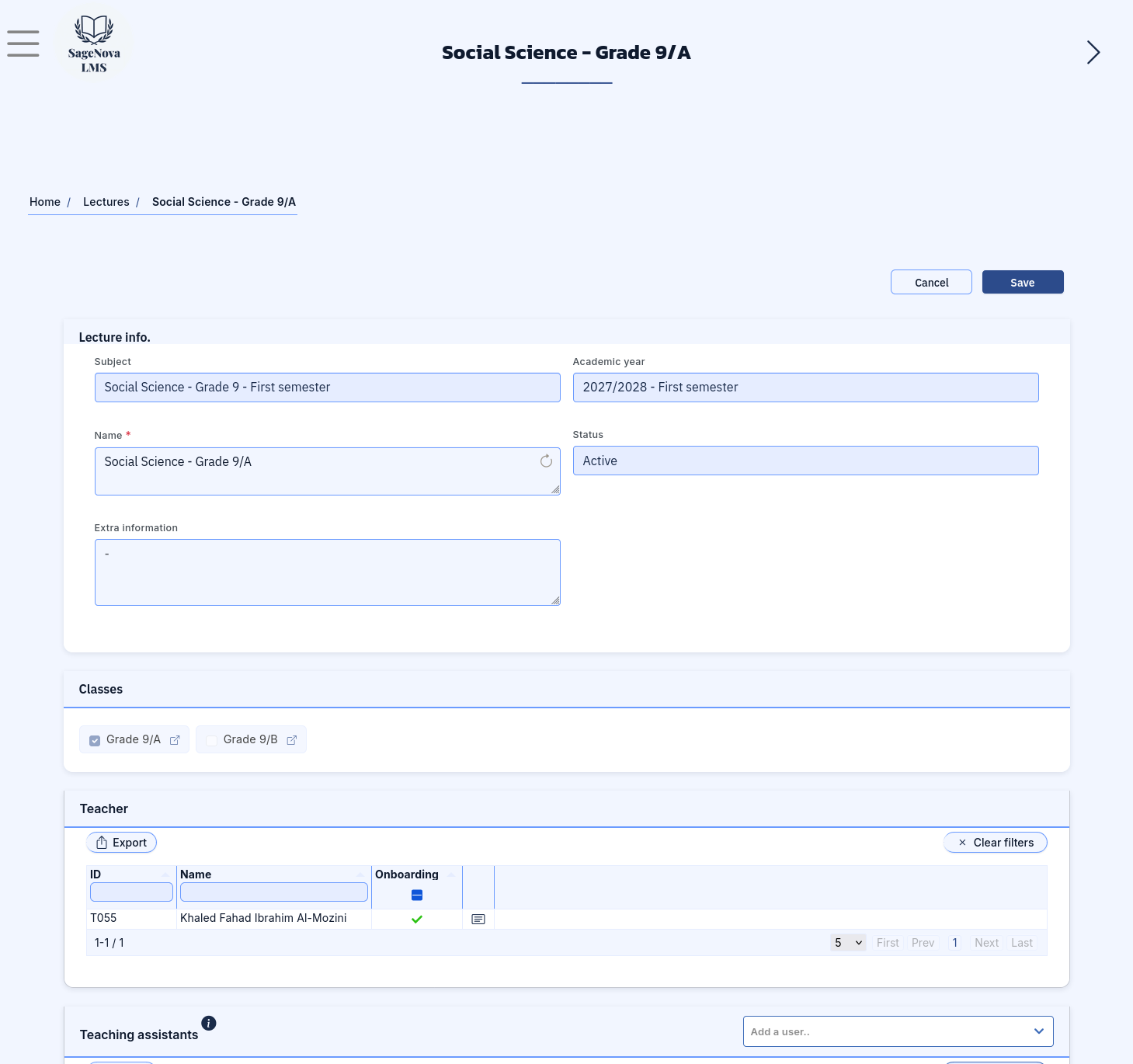
Exhibit 1.2: A lecture record links a subject, academic year, classes, and teachers.
The active academic year
The active academic year is set once per term by the school admin. New lectures and school announcements use it automatically.
Read more:
References
About question banks and question reuse
Each subject has a test bank. The test bank is a reusable collection of questions that can be added to any challenge for that subject. A question has a type, content, a model answer, possible points, grading notes, and a preview.
You can open a test bank from:
- a lecture page, using the Test Bank tab in the off-canvas menu, or
- the Subjects list in the lounge, by selecting a subject's Test Bank icon.
A question card contains:
- Question type — the structure and answer format.
- Question content — the title, statements, choices, or other required fields.
- Model answer — the correct answer or grading guidance.
- Possible points — the maximum score for the question.
- Grading notes — private notes for graders.
For the complete field reference, see the Question builder.
Question types
| Question type | Student response | Grading |
|---|---|---|
| MCQ | Select one or more choices | Automatic |
| True/False | Mark each statement true or false | Automatic |
| Fill in the Blank | Enter text or choose from a list | Automatic; can be adjusted |
| Short Answer | Enter a single-line text response | Automatic; can be adjusted |
| Matching | Match Column B items to Column A items | Automatic |
| Ordering | Arrange items into sequence | Automatic |
| Essay | Enter a long-form response | Manual |
| Attachment | Upload one or more files | Manual |
Reusing questions
You can fork an existing question to create your own copy. You can also change Visibility to Public so other teachers can view and fork your questions, or keep it Private for your own use only. For a walkthrough, see Construct your first question bank.
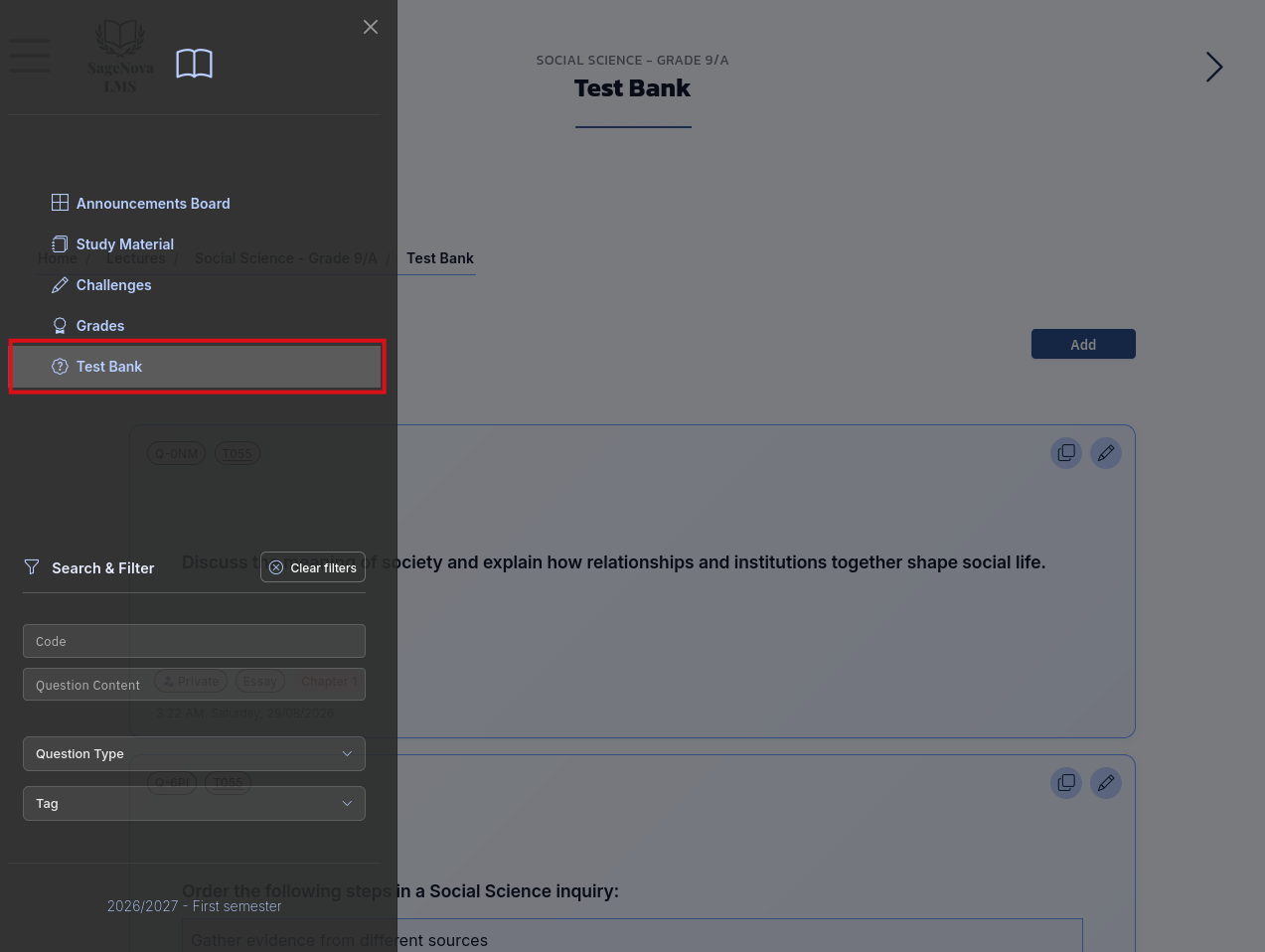
Exhibit 3.1: Open a subject's test bank from a lecture page.
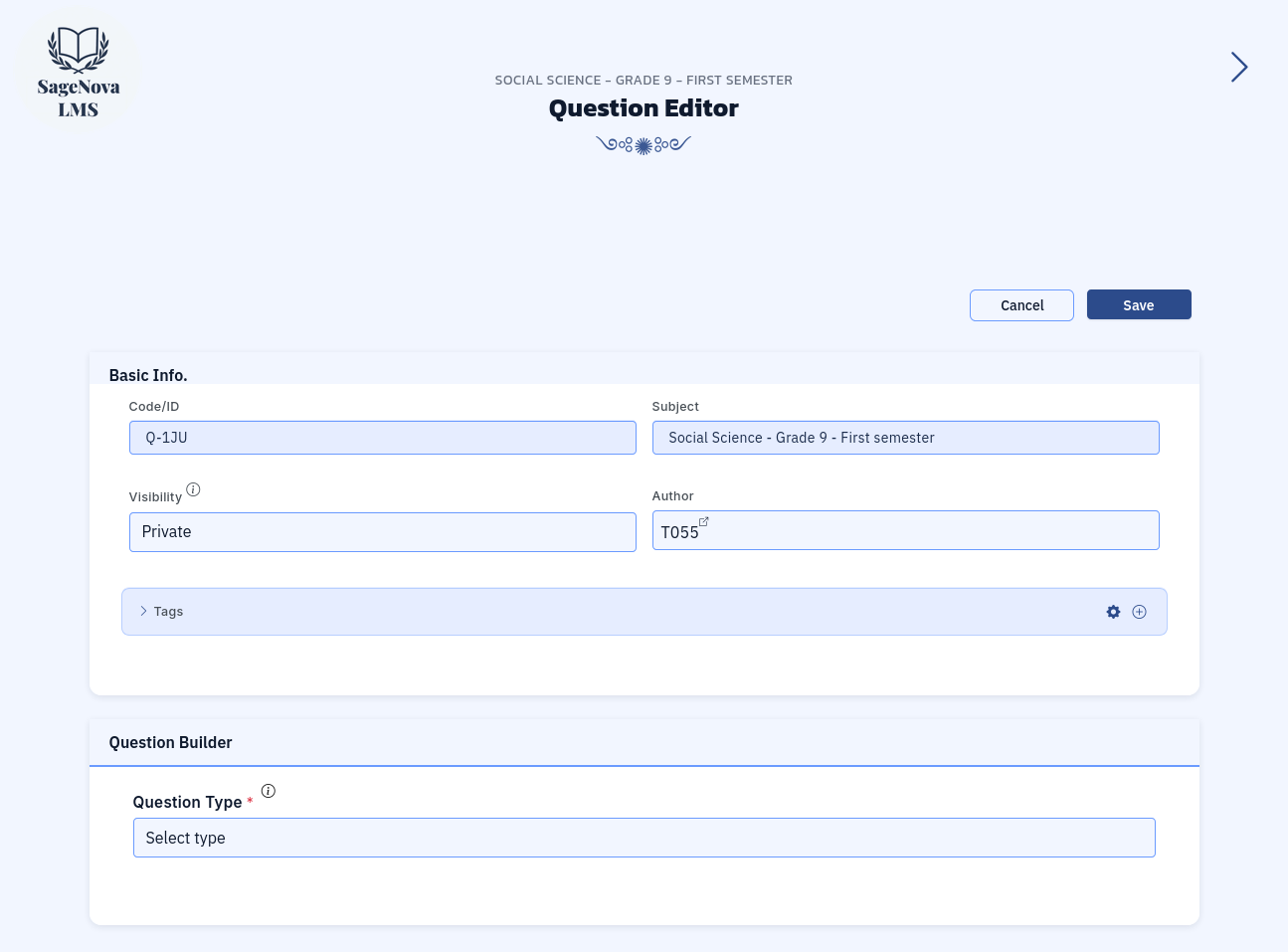
Exhibit 3.2: The question type determines the builder fields and student controls.
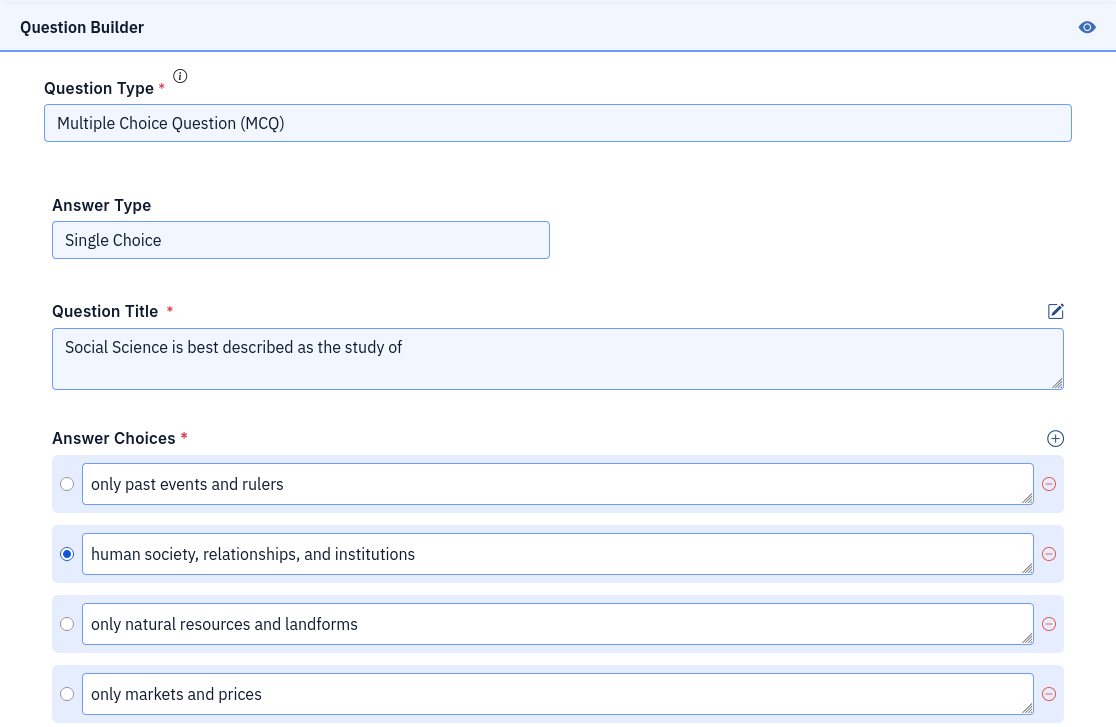
Exhibit 3.3: An MCQ question form in builder mode.
Visibility
Private questions are visible only to you. Public questions can be viewed and forked by other teachers of the same subject.
Preview before saving
Toggle the eye icon to see the question exactly as a student will see it before adding it to a challenge.
Read more:
Tutorials
References
About challenge settings and presets
A challenge is a set of questions delivered to students. It can be preset to a homework assignment, exam, live quiz, or practice problem set. Moreover, it permits flexible settings for more customization. The Settings step of the challenge editor decides when the challenge opens, how students interact with it, how it is graded, and how questions are presented.
Presets
A preset is a predefined combination of settings. Selecting a preset does not prevent further changes; you can still fine-tune individual settings afterward.
| Preset | Live quiz | Timed | Resubmission | Late submission | Auto release grades | Hide questions points | Model answers | Shuffle questions | Shuffle choices |
|---|---|---|---|---|---|---|---|---|---|
| None | Off | Off | 1 try | Off | Off | Off | Off | Off | Off |
| Homework | Off | Off | 2 tries | On | On | Off | On | Off | Off |
| Exam | Off | 60 min | 1 try | Off | Off | Off | On | Off | Off |
| In-class live quiz | On | 15 min | 1 try | Off | Off | Off | On | On | On |
| Practice Problems | Off | Off | Unlimited | On | Off | Off | On | Off | Off |
Fine-grain settings
Fine-grained settings let you customize the preset to suit the assignment's needs:
- Live Quiz — students start only when the teacher opens the challenge.
- Allow late submission — accept submissions after the deadline.
- Release grade automatically — students see their grade immediately after submitting, if all questions can be graded automatically.
- Hide individual question grades — students see only the total score.
- Publish model answers in the grade report — students can view correct answers in the grade report.
- Shuffle questions — random question order per student.
- Shuffle choices & statements — random answer order for MCQ, matching, and fill-in-the-blank choices.
- Timed Assignment — a time limit in minutes, starting when the student opens the questions.
- Allow resubmission — how many attempts a student can make. Enter
0for unlimited attempts. - Questions Included — show a random subset of the challenge questions to each student.
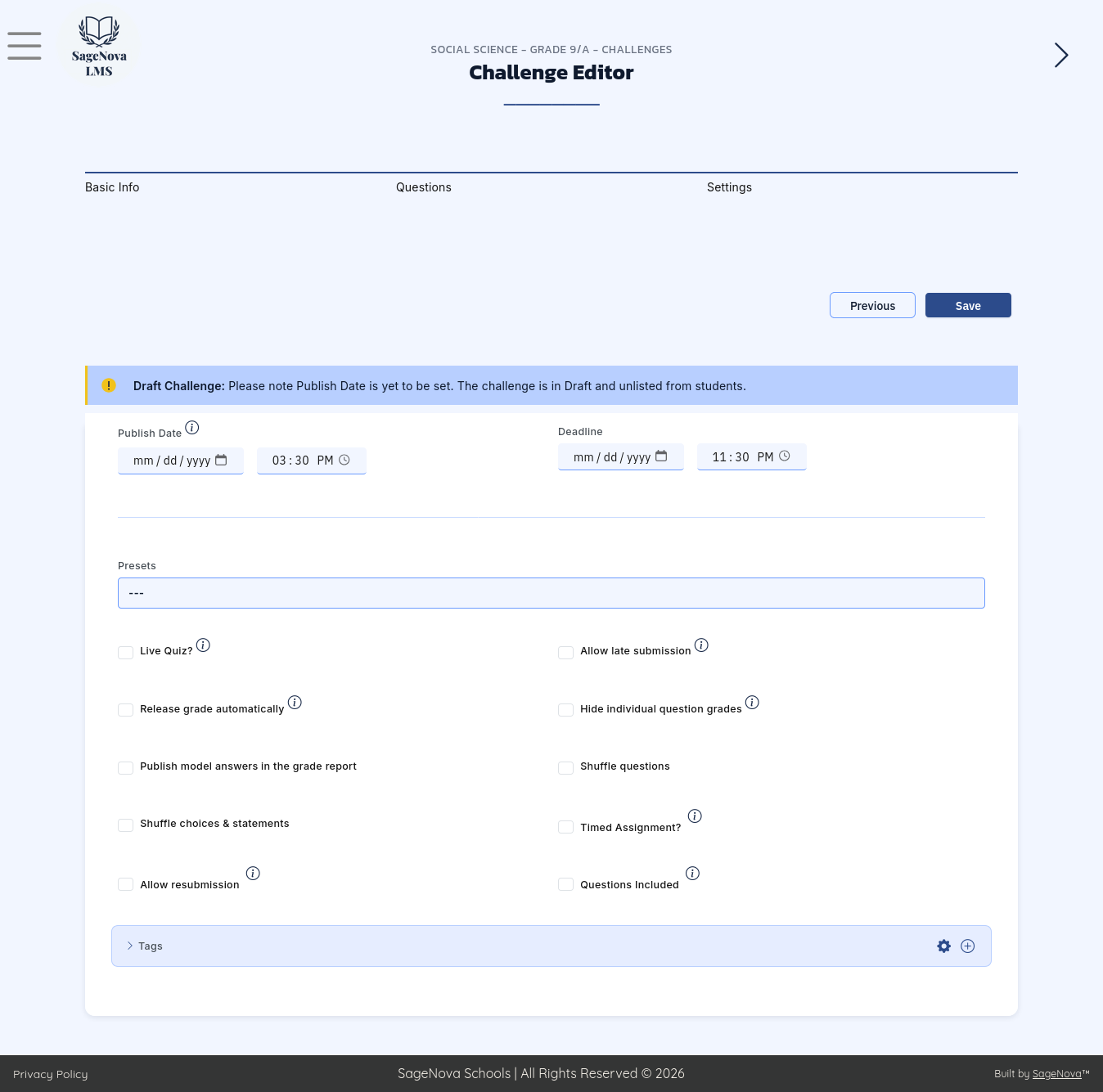
Exhibit 2.1: The Settings step configures challenge behaviour, timing, and grading.
Presets are starting points
After selecting a preset, you can still adjust any individual setting. A preset is not a permanent choice but rather, a starting point.
Read more:
Tutorials
References
About grade reporting and the release flow
When students complete a challenge, their attempts appear in the Submissions list. The list uses three related statuses to track progress.
Submission status
- Delivered — the student deliberately submitted the attempt.
- Ongoing — the submission has some saved answers, but the student has not submitted yet.
- Not started / Not submitted — the student has no attempt. Not started is shown while the challenge accepts submissions; Not submitted is shown after the deadline or fulfillment.
Grading status
- Graded — every question in the attempt has been graded.
- Needs grading — at least one question still needs manual grading.
- — — grading does not apply yet (ongoing, not started, not submitted).
Release status
- Grading — the attempt still needs grading.
- Pending — grading is complete and ready to be released to the student.
- Released — the grade has been shared with the student.
- Submitting — the attempt is ongoing.
- Submaximal — a lower-scoring attempt in a challenge that allows multiple submissions.
Teachers grade each submission in the Grader, add feedback, and then click Release pending to publish the grade reports. If a challenge allows multiple submissions, the highest-scoring released attempt is the one that matters by default.
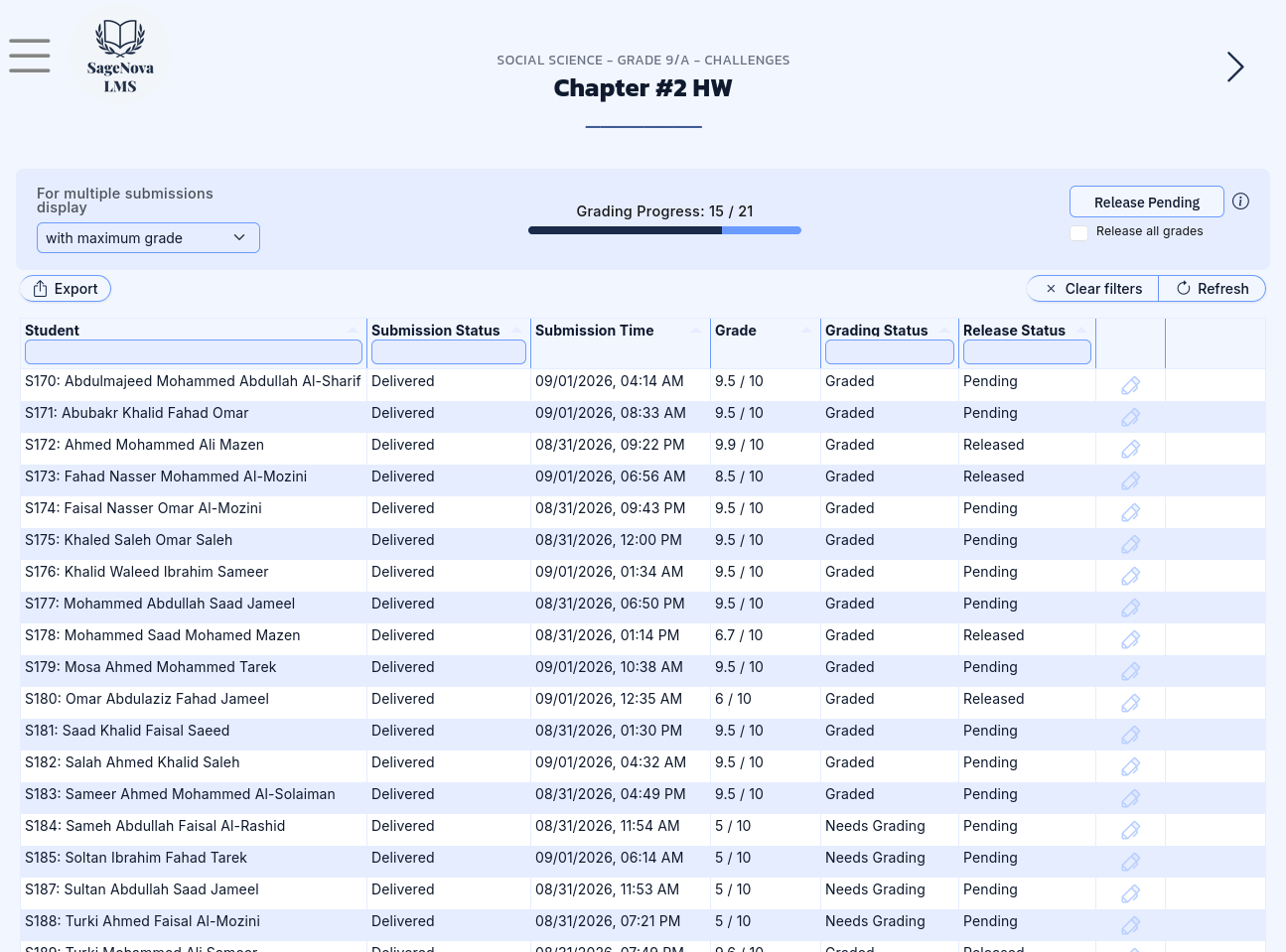
Exhibit 4.1: The Submissions list tracks every attempt through submission, grading, and release.
Multiple submissions
When resubmission is allowed, the list can show more than one attempt per student. Lower-scoring unreleased attempts are marked Submaximal.
Read more:
Tutorials
References
About teaching-assistant access and limitations
SageNova distinguishes between three supporting roles in a lecture:
- Primary teacher — the main teacher responsible for the lecture.
- Assistant teacher — an additional teacher who can help manage the class and the lecture, post announcements, upload study material, grade challenges, and perform other teaching tasks, just like primary teachers.
- Teaching assistant — a student account with limited teacher privileges for the lecture.
Non-auditing Assistant teachers have the same teaching capabilities as primary teachers for the lectures and classes they are assigned to. They can edit lecture content and manage student work; however, they are less accountable in theory compared to the Primary teacher.
Teaching assistants are different. They are students who are given extra responsibilities for a lecture. They can view the lecture and see the submissions list. More importantly, Teaching assistants can grade individual submissions in the submission list, but they cannot release grades to students as grades may require the teacher's review beforehand.
Exhibit 5.1: A lecture can have primary teachers, teaching assistants, and assistant teachers.
Teaching assistants are students
A teaching assistant is a student account, not a teacher account. Their role is meant to support the teacher in grading challenges.
Read more:
References
About audit enrollment
Audit enrollment lets a user follow a class or lecture without being a full participant. It is used for two situations:
- Audit teachers — assistant teachers added with the audit flag. They can view the class or lecture record and its content but cannot edit it.
- Audit students — individual students added to a lecture with the audit flag, usually from an external class. They can view the lecture content but are not counted as regular enrolled students for grading or attendance.
Audit access is read-only. An audit user sees announcements, study material, and challenges, but their submissions and grades are not part of the normal class workflow.
Audit versus normal
Normal teachers and students participate fully. Audit teachers and students observe only.
Read more:
References
About the chronology feed and how items appear
The Chronology feed collects recent activity into one place so they're easier to track and schedule. Depending on your role and available records, it can include announcements, study material, challenges, grade reports, and submissions that need grading.
The page separates records into three tabs:
- Chronology — the normal feed.
- Bookmarks — records you saved for quick access.
- Archive — records you moved out of the main feed.
Each record appears as a card. Unread cards show a notification badge. Selecting View more... on a card marks it as read and opens the related record.
You can filter the feed using the off-canvas Search & Filter menu:
- Type — limit to announcements, study material, or challenges & grade activity.
- Source — limit to a particular lecture, class, or school-wide board.
- Status — on the Chronology tab, show only read or unread records.
- Student — for guardians with more than one child, limit records from one child.
- Tag — find records associated with specific topics.
You can Bookmark cards you want to keep handy, or Archive cards you no longer need in the main feed. Bookmarking and archiving only change how the card is organized for your account; they do not change or affect the underlying content.
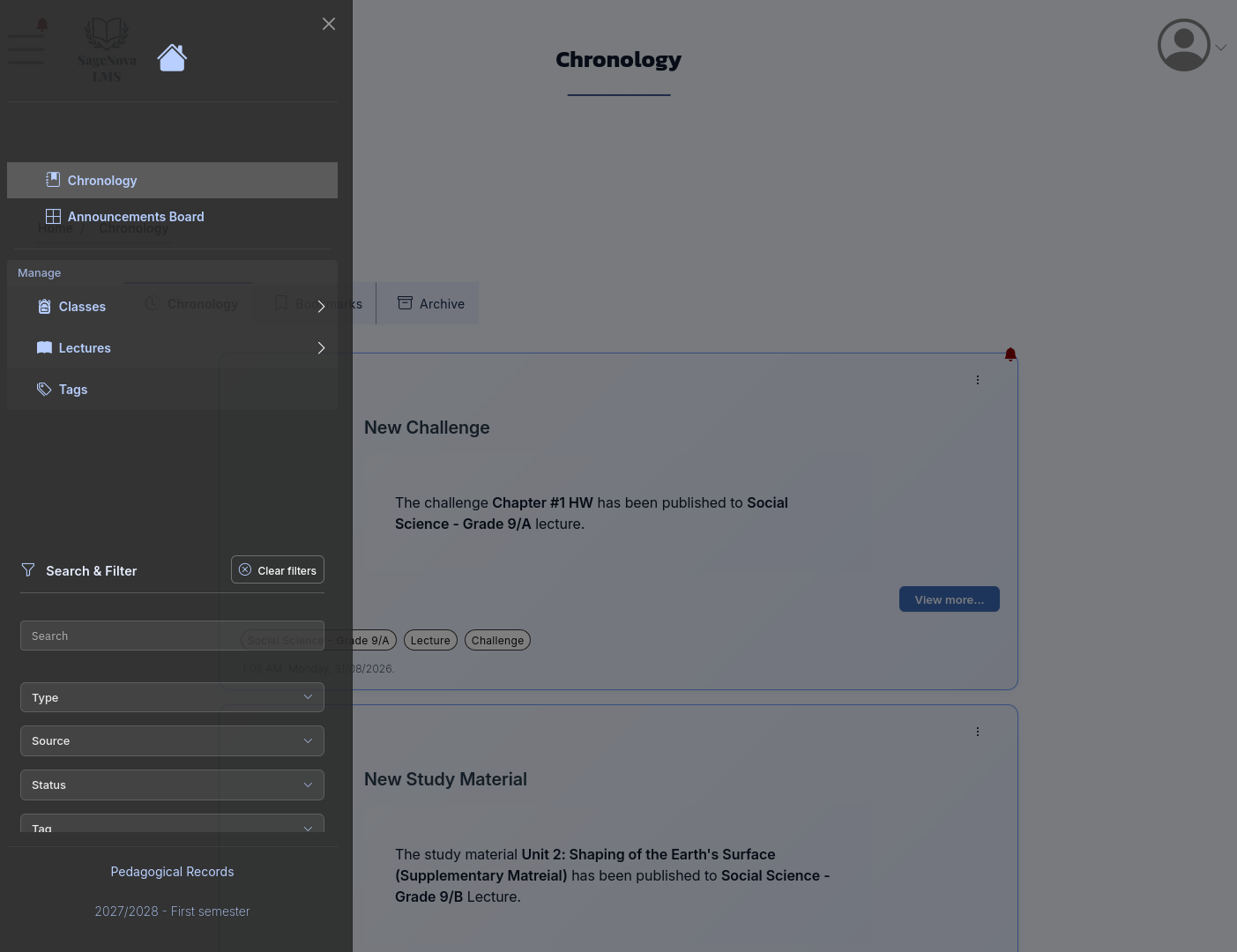
Exhibit 7.1: Open the Chronology feed from the main menu.
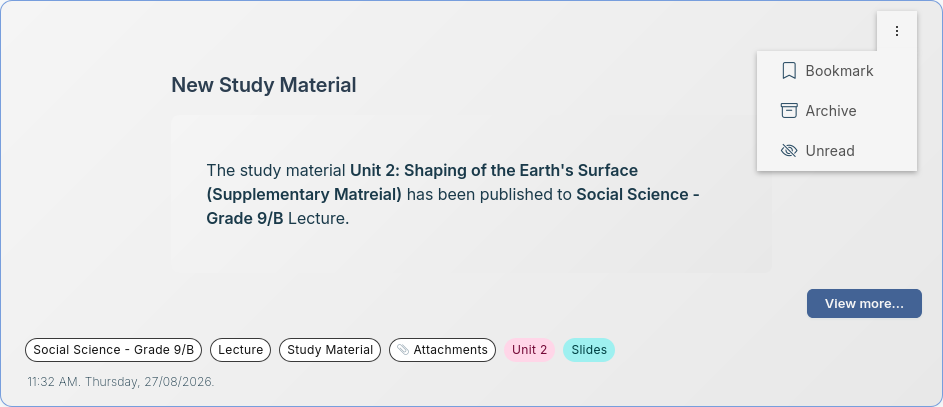
Exhibit 7.2: Use the card's overflow menu to bookmark or archive an item.
How are filters combined?
Within one filter, selected options use OR logic. Across different filters, selections use AND logic.
Filters match the current tab
Filter choices are generated from the records on the current tab. Switch tabs to see different filter options.
Read more:
Tutorials
Additional resources
Tutorials
Share documents, links, and notes with a lecture's students.
Build a reusable collection of questions for a subject.
Assemble questions from a test bank and publish an assessment to students.
Review submissions, adjust scores, and release grade reports.
Save cards for quick access or move them out of the main feed.
Narrow a feed or list by type, tag, source, or status without leaving the page.
 References
What teachers can view and edit for subjects, classes, and lectures.
What teachers can view and edit for school user records.
Complete guide to every question type, scoring, and grading options.
Detailed reference for every challenge setting and preset.
How the three submission-list statuses work and combine.