Challenge settings
The Settings step is the third and final step in the challenge editor. It configures when the challenge is available, how students interact with it, how it is graded, and how questions are presented.
The challenge is in Draft mode as long as its Publish Date is unset.
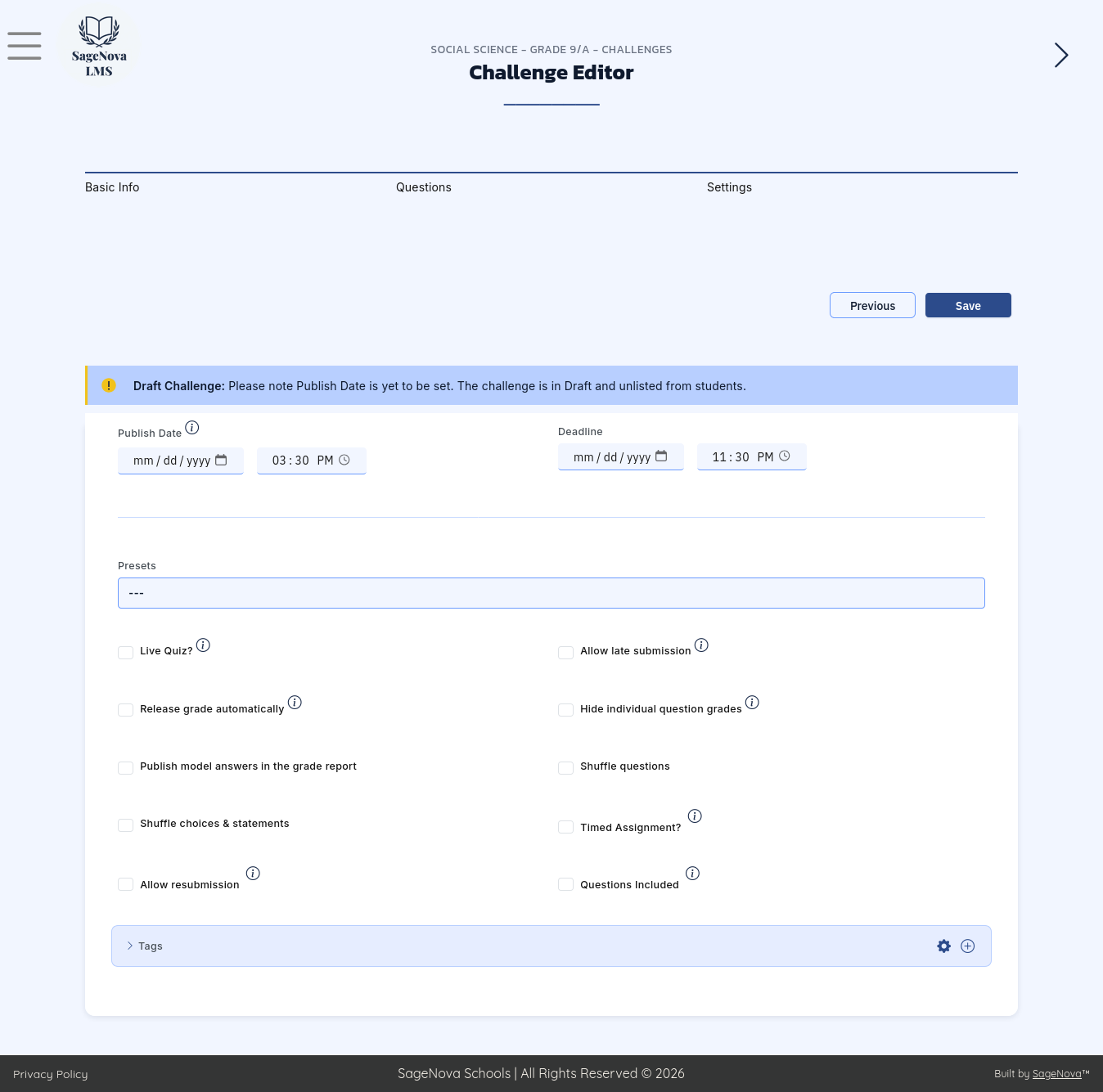
Exhibit 9.1: The Settings step of the challenge editor.
The Settings step contains the following sections, in order:
- Schedule
- Presets
- Fine-grain settings
- Critical actions
Schedule

Exhibit 9.2: The Schedule fields set when the challenge opens and closes.
Publish Date
Sets the date and time for when the challenge becomes visible to students.
- Type: Date and time picker.
- Optional. If left empty, the challenge remains in draft state.
- Default value: unset.
- Read-only after publishing: Once a challenge has been published, this field becomes read-only. To change the publish date, unpublish the challenge first from Critical actions.
- Validation: Must be earlier than the Deadline when both are set.
Deadline
Sets the date and time by which submissions must be made. Any submissions afterward are rejected unless Allow late submission is set.
- Type: Date and time picker.
- Optional. If left empty, the challenge has no fixed submission deadline.
- Default time: unset.
- Validation: Must be later than the Publish Date when both are set.
Info
The challenge remains in Draft and is hidden from students until a Publish Date is set.
Tip
To set the Publish Date immediately, save the challenge and Publish from the critical actions section.
Presets
The Presets field is a drop-down that applies a predefined combination of settings. Selecting a preset does not prevent further manual changes; you can still edit individual settings after a preset is applied.
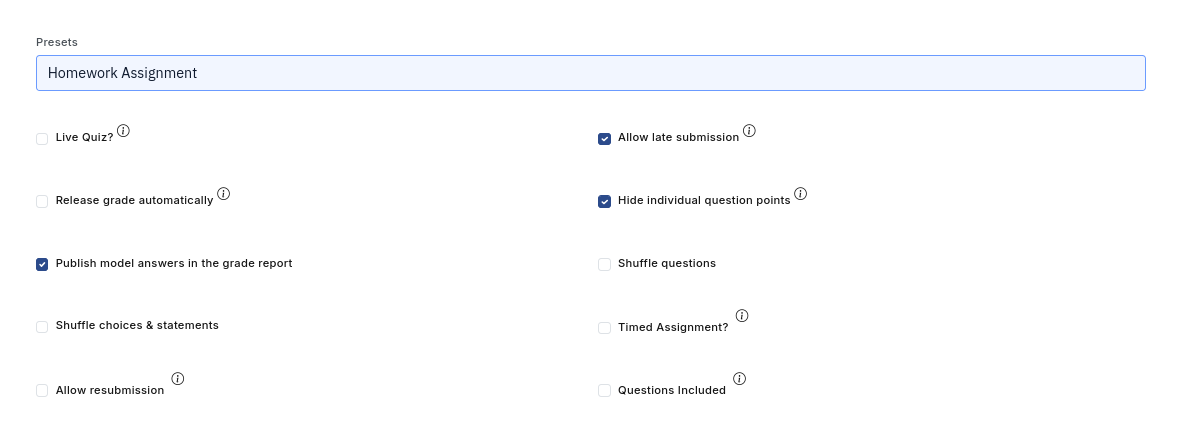
Exhibit 9.3: Select a preset to apply a common combination of settings.
- None (default): All settings are configured manually.
- Homework assignment: One try, allows late submission, includes model answers in the grade report.
- Exam | Sets a
60minute timer for the submission, shuffles questions and statements, includes model answers in the grade report, one try. - In-class live quiz: live mode, sets a
15minute timer, releases grades automatically. - Practice Problems Set: Unlimited tries, allows late submission, includes model answers in the grade report.
In summary, the preset settings are as follows:
| Preset | Live quiz | Timed assignment | Allow resubmission | Allow late submission | Release grade automatically | Hide individual grades | Publish model answers | Shuffle questions | Shuffle choices & statements |
|---|---|---|---|---|---|---|---|---|---|
| None | Off | Off | 1 | Off | Off | Off | Off | Off | Off |
| Homework assignment | Off | Off | 1 try | On | Off | On | On | Off | Off |
| Exam | Off | 60 minutes | 1 try | Off | Off | Off | On | Off | Off |
| In-class live quiz | On | 15 minutes | 1 try | Off | Off | Off | Off | On | On |
| Practice Problems Set | Off | Off | Unlimited | On | Off | Off | On | Off | Off |
Tip
A preset is only a starting point. You can change any individual setting after selecting a preset.
Fine-grained settings
In addition to presets, challenges can be fine-tuned further with the following specific settings:
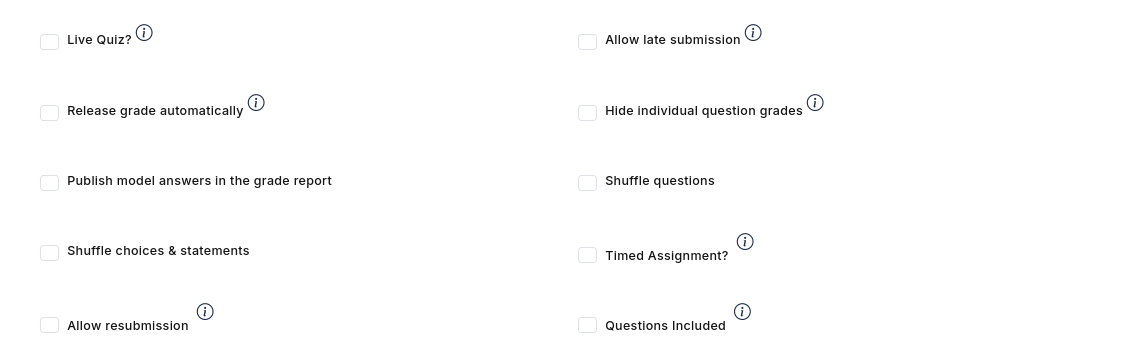
Exhibit 9.4: The fine-grain settings control challenge behaviour and timing.
Live Quiz?
When enabled, the challenge runs as a live quiz. Students can start only when a teacher gives the sign by clicking 'Open' from its introduction page.
Allow late submission
When enabled, students can submit answers after the Deadline.
Release grade automatically
When enabled, students see their grade immediately after submitting, provided all questions can be graded automatically. See Question grading behavior for which question types are graded automatically. When disabled, the teacher must manually release grades before students can see them.
Hide individual question grades
When enabled, students see only the overall score. The points awarded for each individual question are hidden in the exam page, but displayed in the grade report.
Publish model answers in the grade report
When enabled, students can view the model answers (correct answers) in the grade report once released. See Question grading behavior for how model answers are used for each question type.
Shuffle questions
When enabled, the order of questions is randomized for each student.
Shuffle choices & statements
When enabled, the order of choices and statements is randomized for each student in the following question types: MCQ choices, True/False statements, Matching column options (both Column A and Column B), and Fill in the Blank drop-down options.
Timed Assignment?
Sets a time limit for submissions, in minutes. Starts once the questions are displayed for the student.
- Optional number field
- Leave unselected for an untimed challenge
- Enter a positive number to start a countdown timer when the student begins
- When time runs out, the student's current answers are submitted automatically
Allow resubmission
Controls how many times a student can submit the challenge.
- Optional number field
- Leave unselected for accepting only one submission
- Enter
0to allow unlimited submissions - Enter any positive number to allow that many submissions in total
Note
Entering 0 does not mean zero submissions. It means it's open for unlimited tries.
Questions Included
Selects a subset number of questions, from the challenge questions, for each student. For example, if the challenge has 15 questions and this value is set to 5, each student is presented with 5 questions selected randomly from the 15 questions.
- Optional number field.
- Leave empty to include all the challenge questions.
- Enter a number smaller than the total number of questions to show a random subset of that size.
Tip
When setting the Questions Included value, make sure all the challenge questions have the same possible points so all submissions are graded out of the same final mark, resulting in better grade reporting.
Tags
In addition to the challenge settings, like other records, you can assign existing tags to organize the challenge. Click the plus icon next to the Tags label to create a new tag directly from the challenge editor.
Critical actions
The Critical actions section appears at the bottom of the Settings step after saving the challenge, or for existing challenges. It provides actions that change the challenge's lifecycle state.
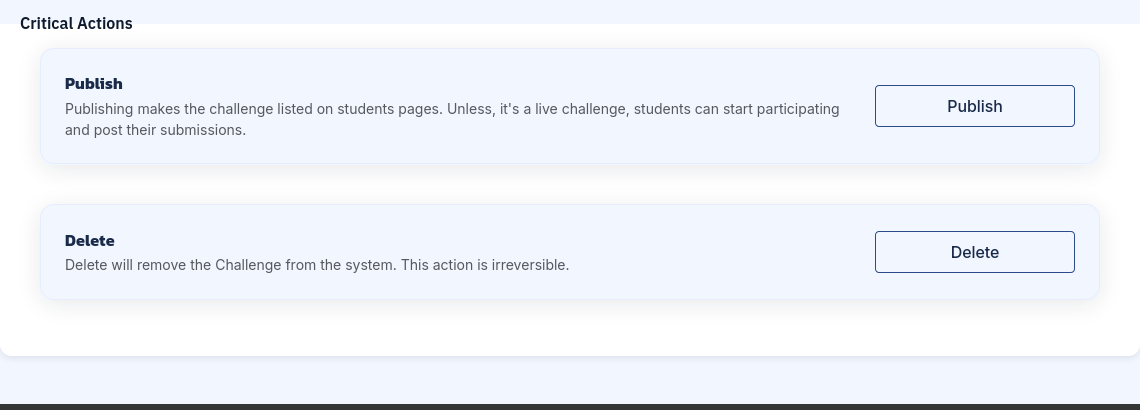
Exhibit 9.5: The Critical actions section controls publishing, unpublishing, and deleting a challenge.
| Action | Visible when | Effect |
|---|---|---|
| Publish | Challenge is in draft and its Publish date is unset |
Makes the challenge active for students immediately, regardless of whether Publish date is unset or set for a future time. |
| Unpublish | Challenge is published and its Publish date is at some past time |
Hides the challenge; the challenge records and submissions are unaffected. |
| Delete | Challenge exists and the user has delete permission | Permanently removes the challenge. Requires password confirmation. |
Warning
Deleting a challenge cannot be undone. Use Unpublish instead if the goal is only to hide the challenge temporarily.
Additional resources
Tutorials
Assemble questions from a test bank and publish an assessment to students.
Review submissions, adjust scores, and release grade reports.
 References
Complete guide to every question type, scoring, and grading options.
How the three submission-list statuses work and combine.