Bookmark and archive chronology cards
Estimated time: 8 minutes
The Chronology feed collects announcements, study material, challenge activity, grade reports, and other updates in one place. Bookmark cards you want to find again, or archive cards you no longer need in the main feed. To narrow the feed by type or tag, see Utilize Search & Filter.
Access: From the main off-canvas menu, select Chronology.
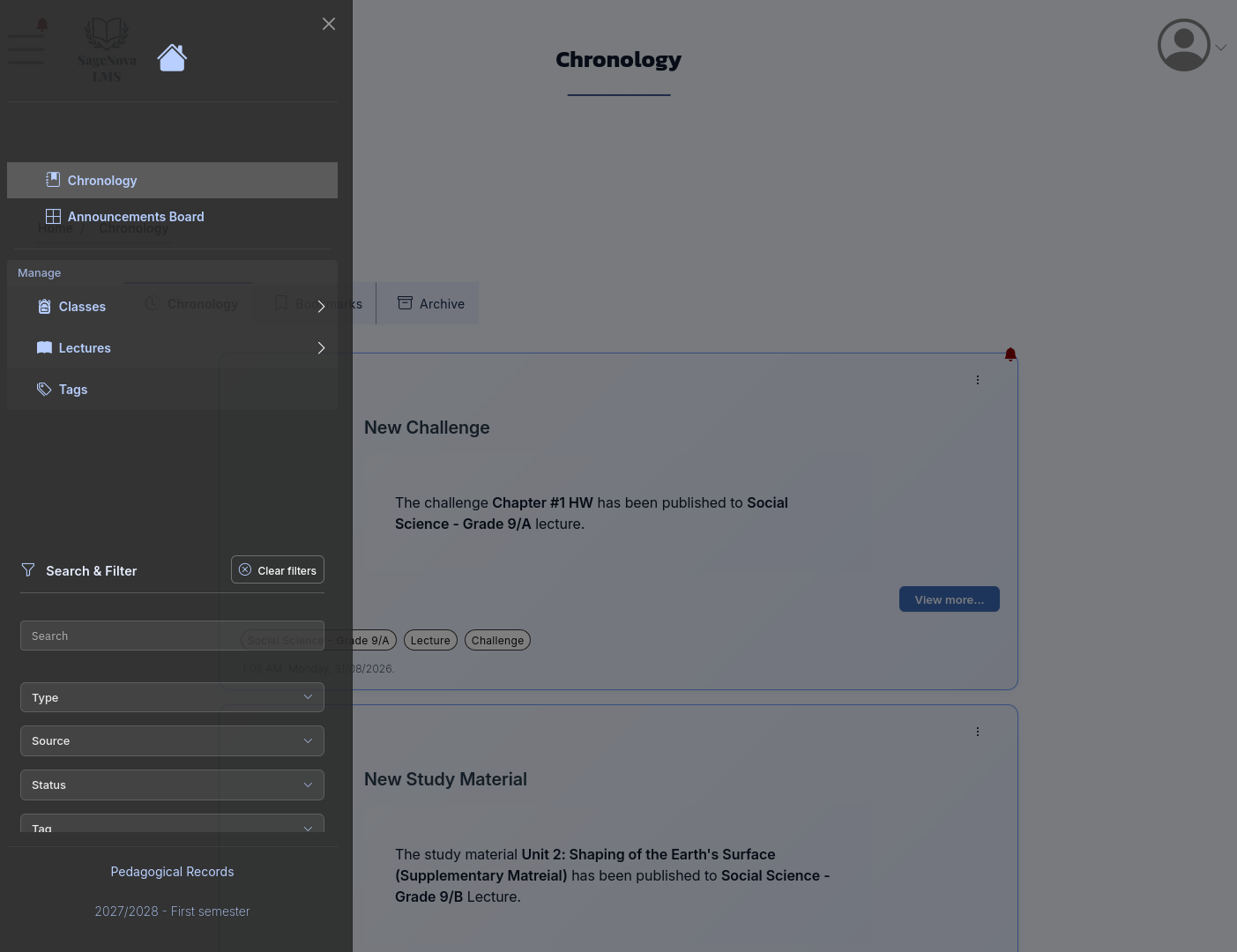
Exhibit 12.1: Open Chronology from the main off-canvas menu. The feed provides Chronology, Bookmarks, and Archive tabs, and an overflow menu in the upper corner of each card.
The Chronology page contains three tabs:
- Chronology — cards that are currently in the main feed.
- Bookmarks — cards saved for quick access.
- Archive — cards moved from the main feed to the archive.
Info
Bookmarking and archiving change only how a chronology card is organized for your account. They do not change or delete the chronology content represented by the card.
Open a card's actions
Each card has an overflow menu in its upper corner. Open this menu to see the actions currently available for that card.
The menu changes with the card's current state:
| Current location or state | Available actions |
|---|---|
| Unread card in Chronology | Mark as read, Bookmark, Archive |
| Read card in Chronology | Bookmark, Archive, Mark as unread |
| Card in Bookmarks | Unbookmark, Archive |
| Card in Archive | Unarchive, Bookmark |
Selecting the card's 'View more...' marks it as read and opens the related record.
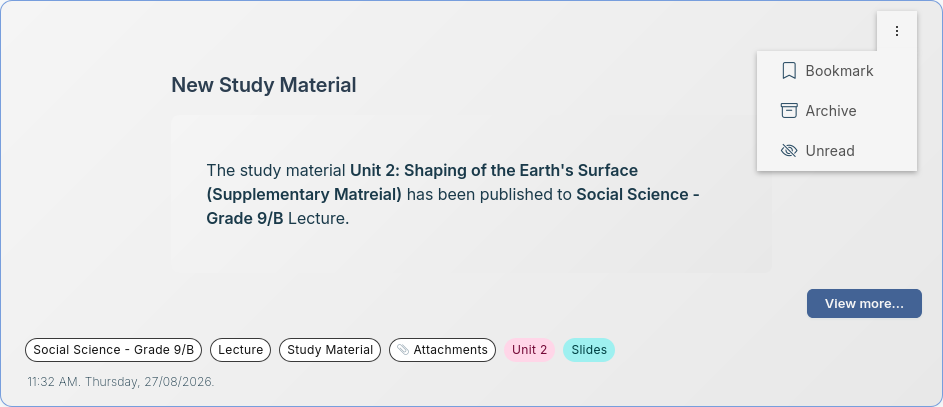
Exhibit 12.2: Open a chronology card's overflow menu to access its actions.
Bookmark a card
- In the Chronology tab, locate the card you want to save.
- Open the card's overflow menu.
- Select Bookmark.
- Open the Bookmarks tab to find the card.
The card is removed from the main Chronology tab and placed in Bookmarks. A bookmark indicator appears on the card.
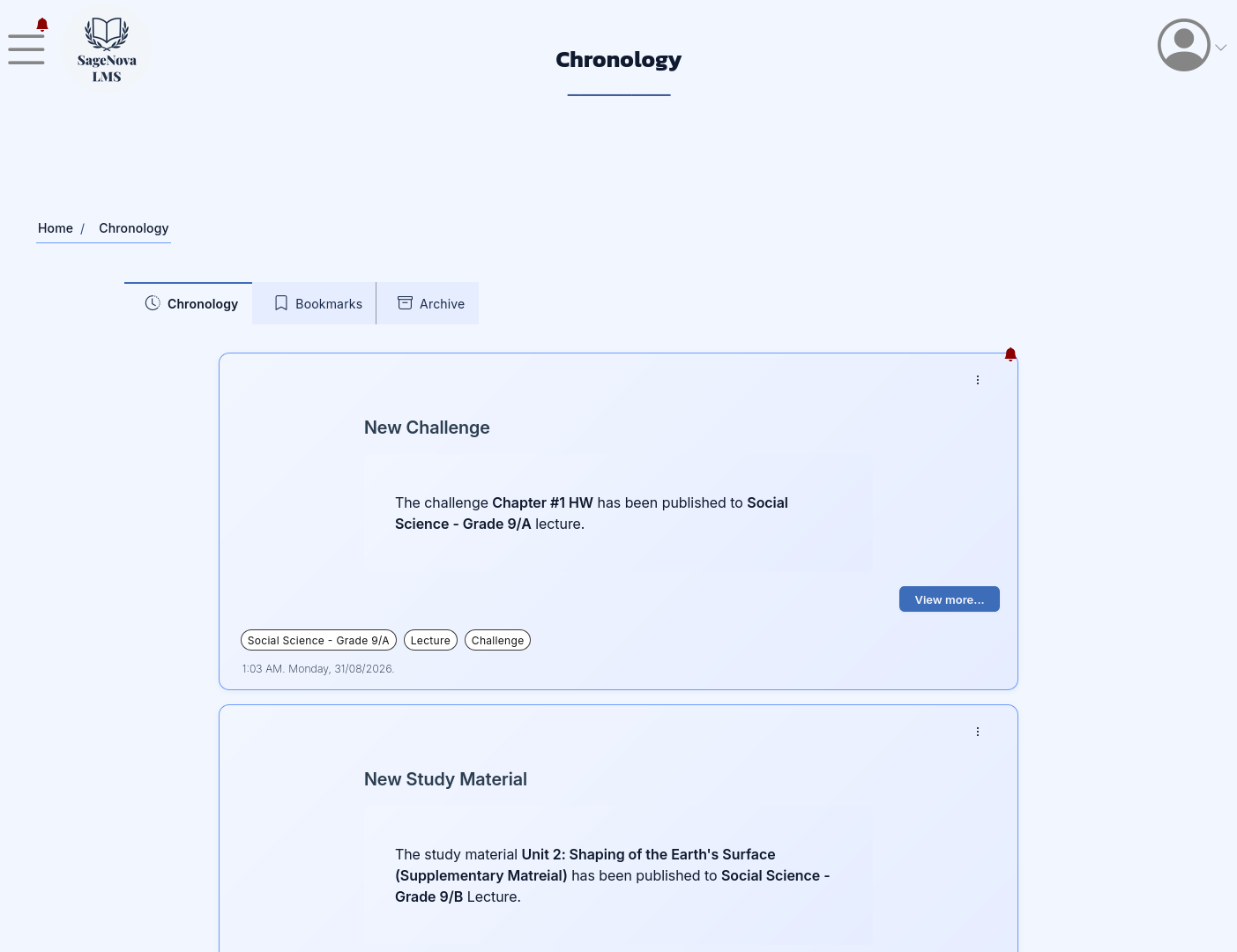
Exhibit 12.3: Cards are firste collected in the Chronology tab.
Tip
Bookmark an update when you expect to return to it, such as study material you still need, a challenge reminder, or a grade report you want to review.
Bookmark an archived card
You can move a card directly from Archive to Bookmarks:
- Open the Archive tab.
- Open the card's overflow menu.
- Select Bookmark.
The card leaves Archive and appears in Bookmarks.
Remove a bookmark
- Open the Bookmarks tab.
- Open the bookmarked card's overflow menu.
- Select Unbookmark.
The card returns to the Chronology tab as a read card.
Note
Unbookmarking does not return a card to its previous unread state. Use Mark as unread from the Chronology tab if needed.
Archive a card
- In the Chronology or Bookmarks tab, locate the card you want to put aside.
- Open the card's overflow menu.
- Select Archive.
- Open the Archive tab to find the card.
The card is removed from its current tab and placed in Archive. An archive indicator appears on the card.
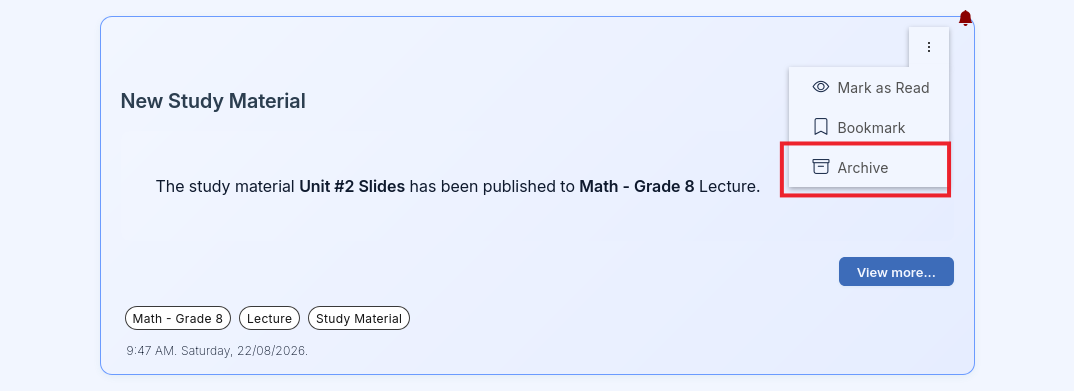
Exhibit 12.4: Select Archive from a card's overflow menu to remove it from the current feed.
Tip
Archive cards that you no longer need to keep the main feed tidy.
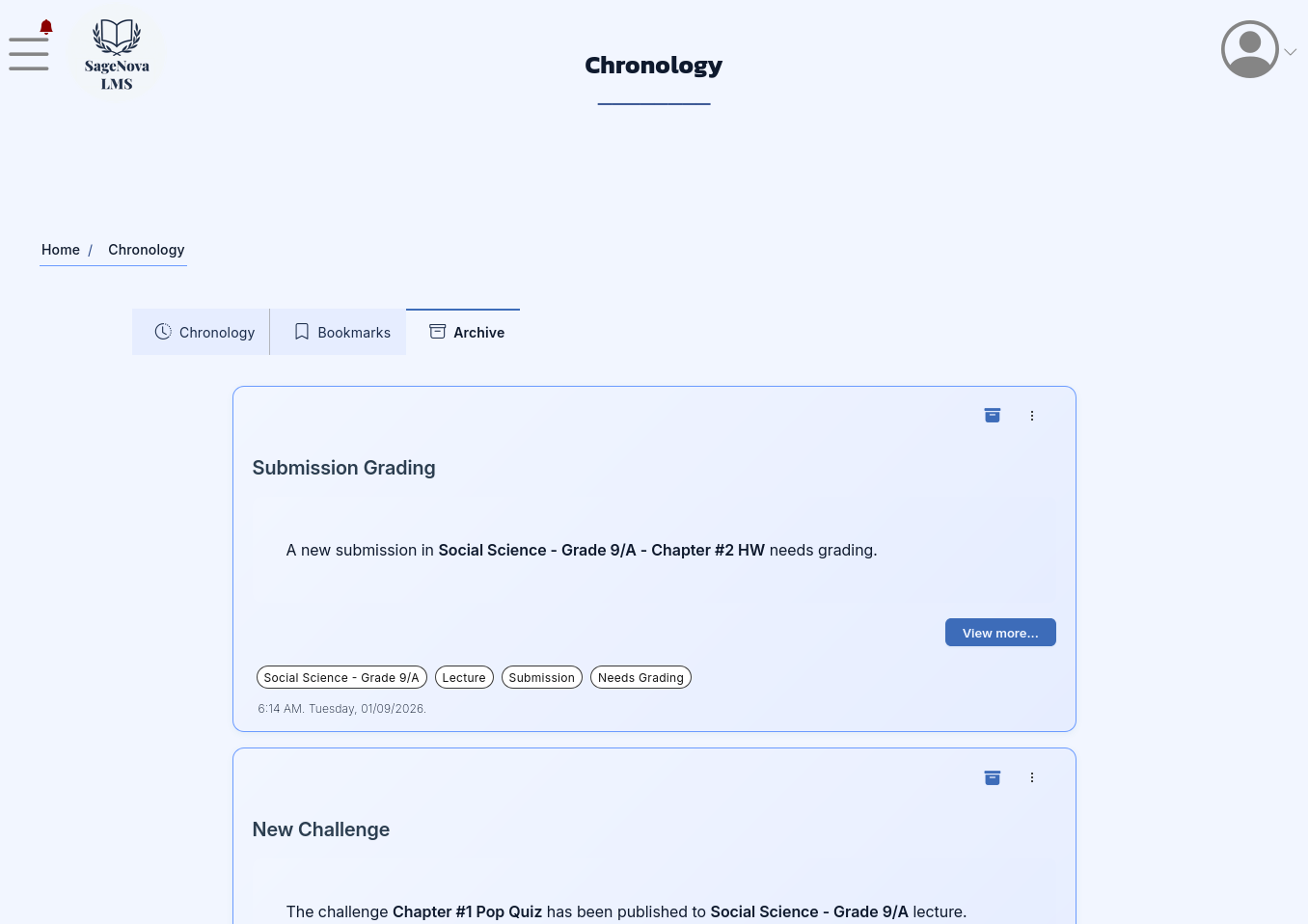
Exhibit 12.5: Archived cards remain available from the Archive tab and can be restored or bookmarked.
Restore an archived card
- Open the Archive tab.
- Open the archived card's overflow menu.
- Select Unarchive.
The card returns to the Chronology tab as a read card.
To move an archived card to Bookmarks instead, select Bookmark rather than Unarchive.
Recognize unread activity
A notification badge identifies unread chronology activity in two places:
- On a chronology card: A notification badge appears at the upper edge of every unread card in the Chronology tab.
- On the main off-canvas handler: A notification badge appears on the menu button whenever at least one unread chronology card exists. This lets you recognize new activity as soon as it's published.
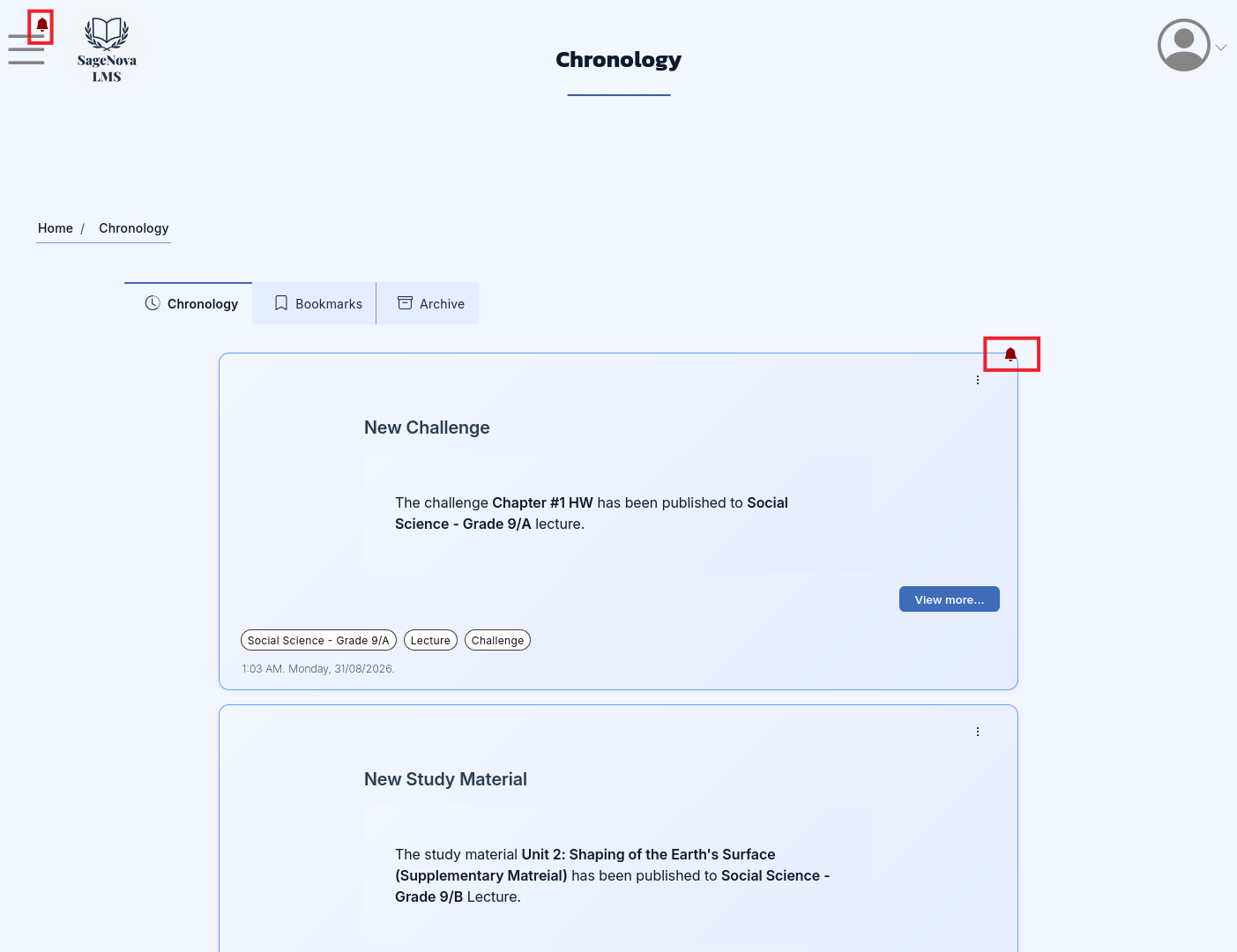
Exhibit 12.6: Notification badges on chronology cards and the main menu button indicate unread activity.
The card's notification badge disappears when you mark or open that card as read. The notification badge on the main off-canvas handler remains while any other chronology card is unread and disappears once no unread cards remain.
Note
Bookmarking or archiving an unread card removes it from the unread Chronology feed, so it no longer contributes to the notification badge on the main menu handler.
Mark cards as read or unread
Read status is independent of the card's content:
- Select Mark as read on an unread Chronology card.
- Select Mark as unread on a read Chronology card.
- Opening a card through View more... also marks it as read.
- Cards restored with Unbookmark or Unarchive return to Chronology as read.
You can use the Status filter on the Chronology tab to show only read or unread cards. For more filtering options, see Filter the chronology feed by type or tag.
Note
The Bookmarks and Archive tabs do not display the read/unread Status filter as such cards are marked as read.
Find cards within each tab
The off-canvas Search & Filter section works separately with the records in the active Chronology, Bookmarks, or Archive tab.
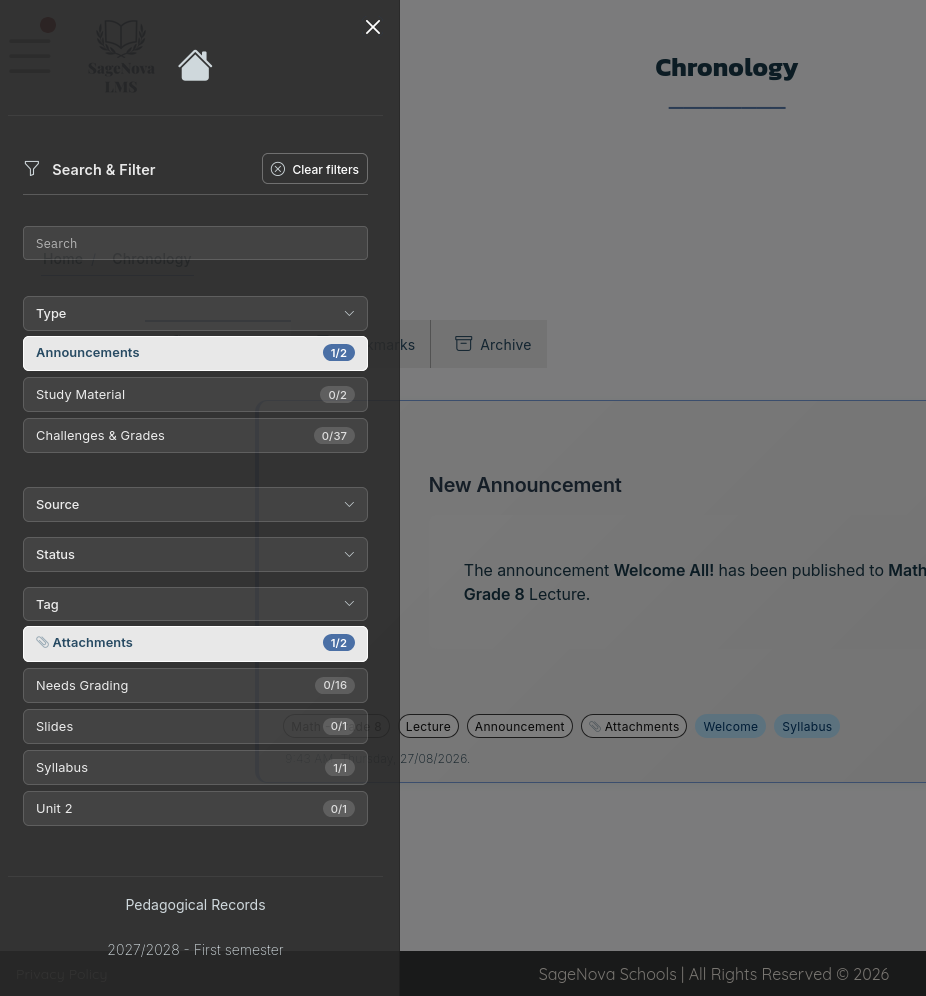
Exhibit 12.7: Search and filter the cards in the active chronology tab.
Tip
Use Clear filters if a newly bookmarked, archived, or restored card does not appear where expected; an active filter may be hiding it.
Additional resources
Tutorials
Narrow a feed or list by type, tag, source, or status without leaving the page.
Create and apply tags to filter announcements, material, and challenges.