Grade and release grade reports to students
Estimated time: 6 minutes
This guide shows how to grade a challenge's submissions and release the resulting grade reports to students.
Prerequisites
- You are a teacher in the challenge lecture.
Access: Open the challenge record from the lecture challenges list, then switch to the Submissions tab.
Open the submissions list
The Submissions tab shows one row for each student or attempt. The columns include:
- Student — the school ID and full name of the student.
- Submission status — the state of the student's attempt.
- Submission time — when the student submitted.
- Grade — the earned and possible points.
- Grading status — whether the submission is graded or still needs grading.
- Release status — pending, released, or still being graded.
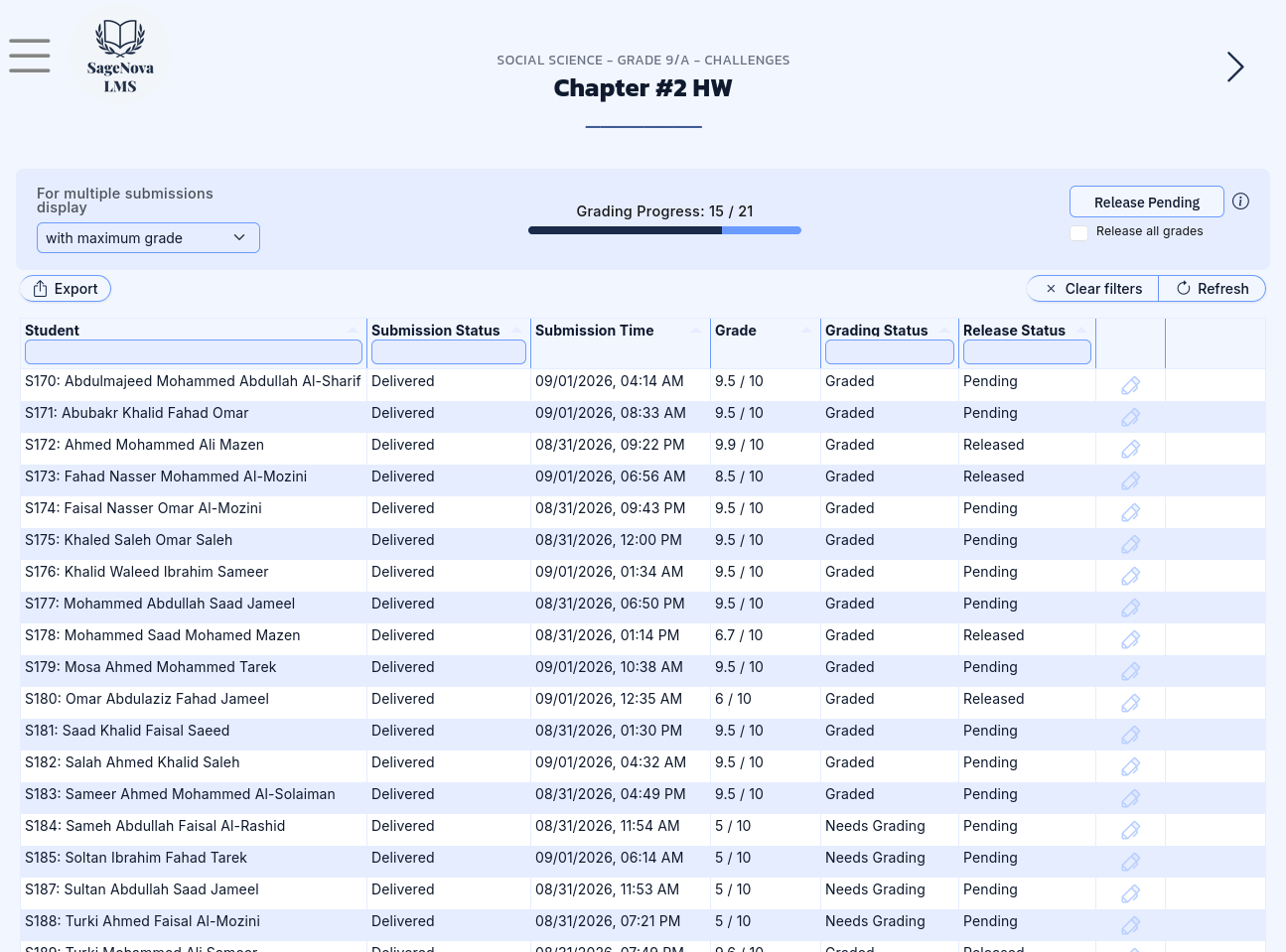
Exhibit 10.1: The submissions list shows one row for each student attempt.
Tip
When the lecture has more than one class, the Submissions menu expands into a submenu with one entry per class, plus All classes. Select a class to display that class's submissions.
Submission status values
For the complete status reference, see Submission, Grading, and Release statuses.
| Status | Meaning |
|---|---|
| Delivered | The student opened the challenge, answered, and clicked Submit. The try is complete and ready for grading or release. |
| Ongoing | The student opened the challenge and may have answered some questions, but has not submitted yet. A Delivered submission can be converted back to Ongoing using the Return critical action in the Grader. |
| Not submitted | The challenge deadline has passed or the time limit expired without the student submitting. |
| Not started | The student never opened the challenge. |
At the top of the list you also see the Grading progress bar, which shows how many submissions have already been graded.
Grade a submission
- Find the student row you want to grade.
- Click the Grade button or the pencil icon at the end of the row.
- The Grader opens with the student's answers and a summary of the questions.
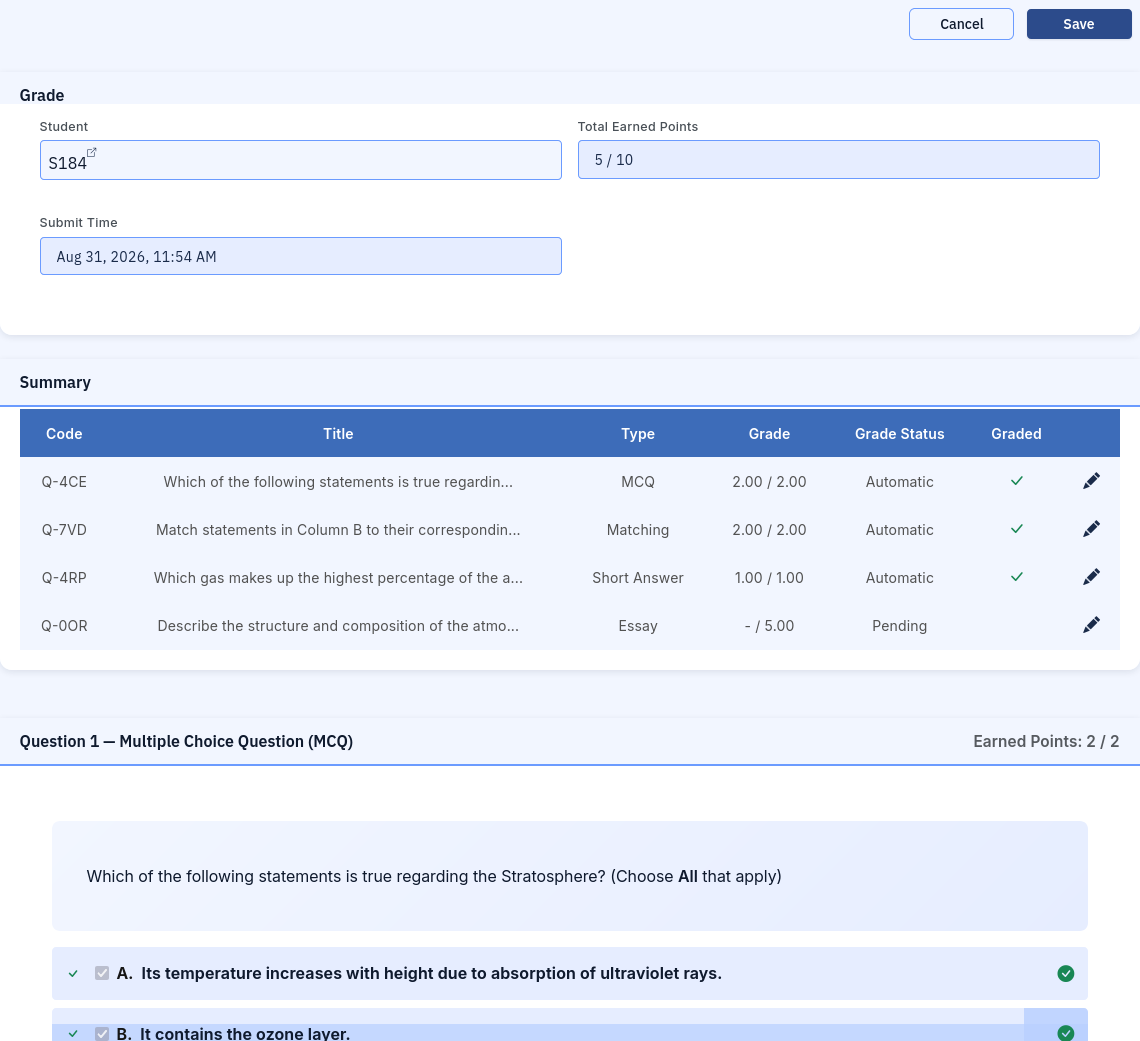
Exhibit 10.2: The Grader displays the student's submission and lets you review each question.
In the Grader:
- Review each question and adjust the points where automatic grading needs correction.
- Add feedback for the student and, if the student has a guardian registered in the system, feedback for the guardian.
- Check the total earned and possible points at the top.
Click Save when you are done. The submission is now marked as graded and its release status becomes Pending.
Tip
You can leave a submission and return later. The status remains Needs grading until you save.
Release grades
When you are ready to show the grades to students, return to the submissions list and click the Release pending button.

Exhibit 10.3: Click Release pending to publish the grade reports that are ready.
This releases all graded submissions that are in Pending status. After releasing, the Release status for those rows changes to Released, and students can view their grade reports.
Note
Only submissions you have graded and saved will be released. If a student has not submitted yet, no grade is released unless you enable the next option.
Release grades for non-submitters and ongoing attempts
To give a zero grade to students who did not submit a final attempt:
- Check the Release not started / not submitted grades checkbox next to the Release pending button.
- Click Release pending again.
- Confirm the action in the confirmation dialog.
This also releases a grade for students with Ongoing submissions with their current earned points.
These students receive a zero grade with the status Not submitted or Not started.
Note
Releasing grades cannot be undone from the submissions list. To hide a released grade from a student, open the individual submission and use the Unrelease critical action.
View grade reports
After grades are released, students see the grade report in their challenge page. The report shows:
- The total score.
- Each question and its earned points.
- Model answers, if the challenge was configured to publish them.
- Your feedback, if you entered any.
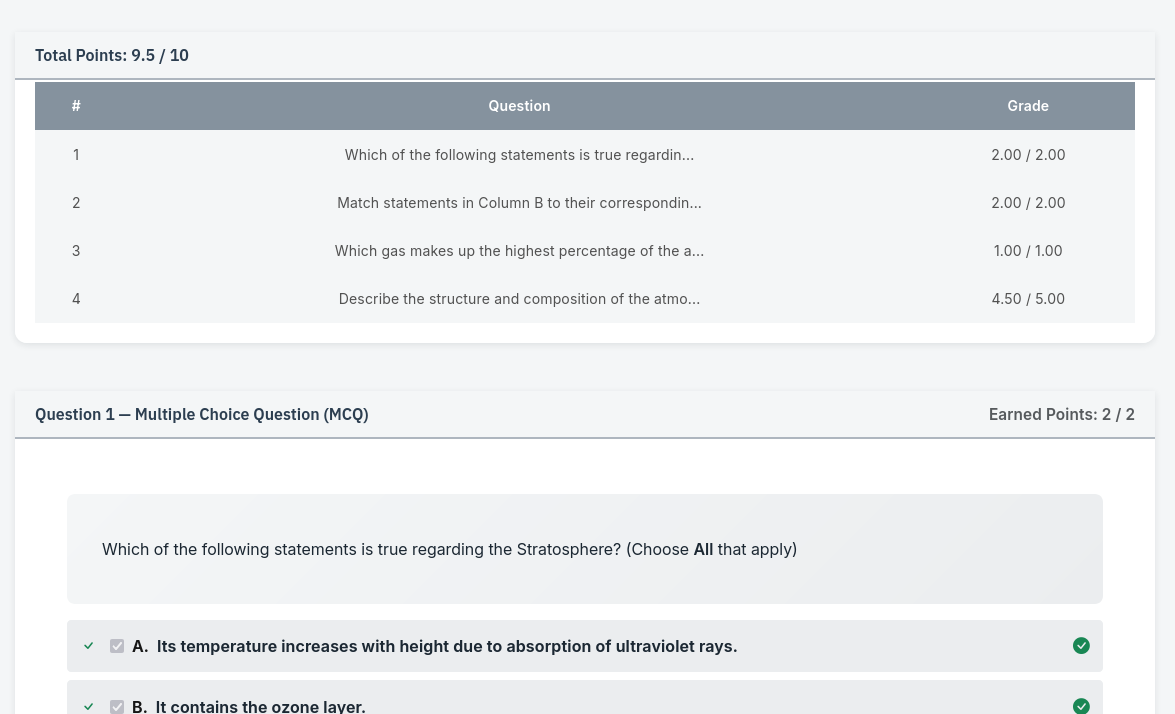
Exhibit 10.4: The released grade report as seen by the student.
Additional resources
Tutorials
Assemble questions from a test bank and publish an assessment to students.
Record scores for activities completed outside SageNova LMS.
 References
Detailed reference for every challenge setting and preset.
How the three submission-list statuses work and combine.