Question builder
The question builder defines the questions used in homework, exams, live quizzes, practice problem sets, and assignments in general. It provides eight question types, a model answer for grading, question-level scoring, and a preview of the student experience.
Where it appears: In Test Banks when you add a new question or edit an existing question.
Question builder structure
A question builder card contains the following areas:
- Question type — selects the structure and answer format of a new question.
- Question content — contains the title, statements, choices, columns, or other fields required by the selected type.
- Model answer — identifies the answer or answers used for automatic grading, or provides guidance for manual grading.
- Possible points — sets the maximum score for the question. This value could be changed in challenges later.
- Grading notes — provides private guidance to graders.
- Preview toggle — switches between the builder and the student-facing test view.
The fields in the question-content and model-answer areas change according to the selected question type.
Question types
The Question type selector appears when a new question is created. The selected type determines which builder fields and student answer controls are displayed.
| Question type | Student response | Grading |
|---|---|---|
| MCQ | Select one or more choices | Automatic |
| True/False | Mark each statement true or false | Automatic |
| Fill in the Blank | Enter text or select a choice for each blank | Automatic; may be adjusted manually |
| Short Answer | Enter a short text response | Automatic; may be adjusted manually |
| Matching | Match items in Column B with items in Column A | Automatic |
| Ordering | Assign positions or drag items into sequence | Automatic |
| Essay | Enter a long-form response | Manual |
| Attachment | Upload one or more files | Manual |
The question type is fixed after the question is saved. The type selector is therefore shown only while creating a new question.
Warning
Confirm the question type before saving. To use a different type after saving, create a new question.
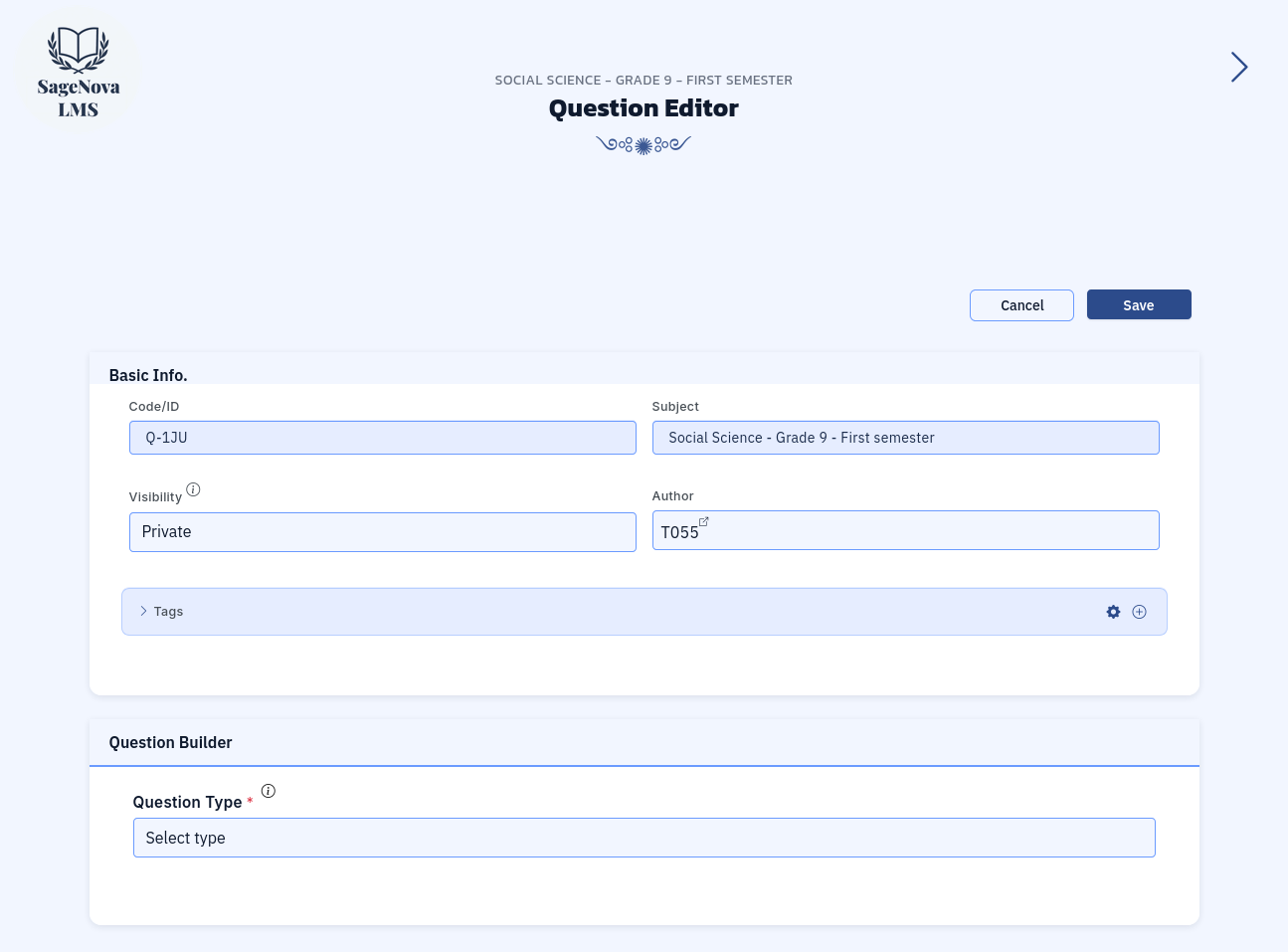
Exhibit 6.1: The Question type drop-down is the first step in creating a question.
Common controls
Question title
The Question title contains the question prompt or an overall heading for its statements or items.
The title is required for:
- MCQ
- Short Answer
- Essay
- Attachment
The title is optional for:
- True/False
- Fill in the Blank
- Matching
- Ordering
True/False, Fill in the Blank, Matching, and Ordering questions receive a type-specific default title. You can replace it when needed.
Simple and advanced title editors
The pencil button beside Question title switches between:
- Simple editor — a plain text area.
- Advanced editor — a rich-text editor for formatted content and embedded files.
The editor mode is retained with the question. Rich content is rendered with its formatting in preview, test, and grading views.

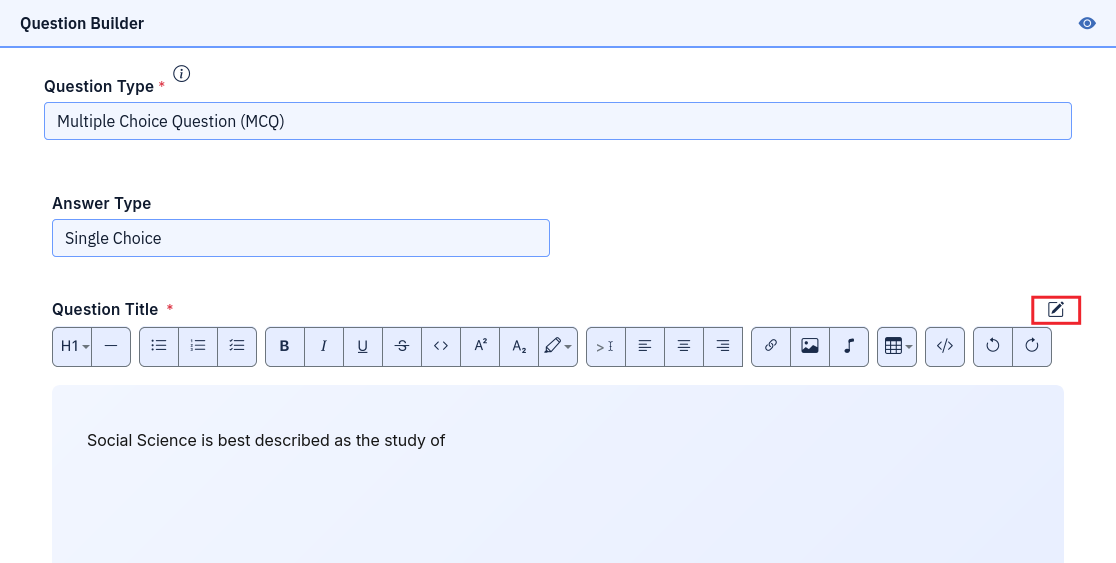
Exhibit 6.2: The Question title field with its simple/advanced editor toggle.
Add and remove controls
Question types containing statements, choices, or items use these controls:
| Control | Meaning |
|---|---|
| Plus-circle button | Adds a choice, statement, answer, or item. |
| Minus-circle button | Removes the associated choice, statement, answer, or item. |
Possible points
Possible points sets the question's possible score. This value can be set again per challenge.
Grading notes
Grading notes is an optional text area for instructions or guidance intended for graders. These notes are displayed in grading views and are not part of the student-facing question.
Tip
Use Grading notes for scoring criteria or acceptable variations that graders need but students should not see.
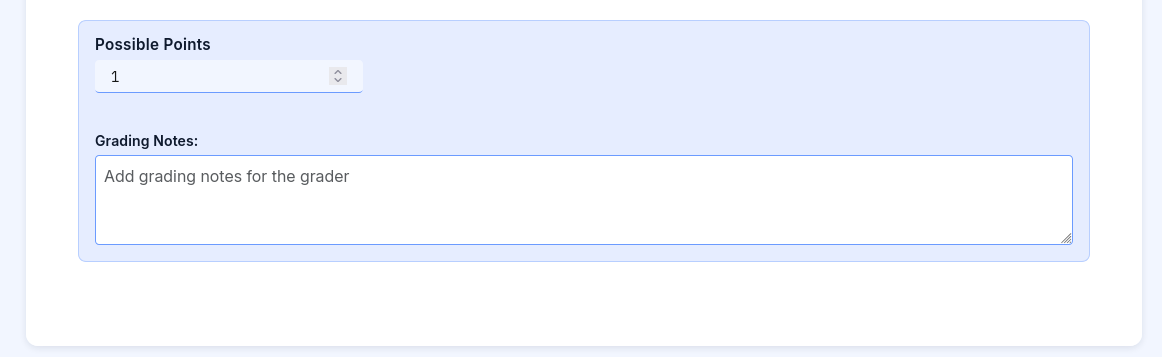
Exhibit 6.3: Possible points and Grading notes are available for every question type.
Builder preview
The button in the upper-right corner of the card switches between:
- Edit mode — displays the builder fields and model-answer controls.
- Preview/Test mode — displays the question using the controls students will use.
The eye icon opens preview. The gear icon returns to edit mode.
Preview is available after a question type has been selected.
Tip
Preview each question before saving to check its wording and answer controls from the student's perspective.
See Exhibit 6.12: Builder preview toggle for the preview toggle.
Builder preview toggle
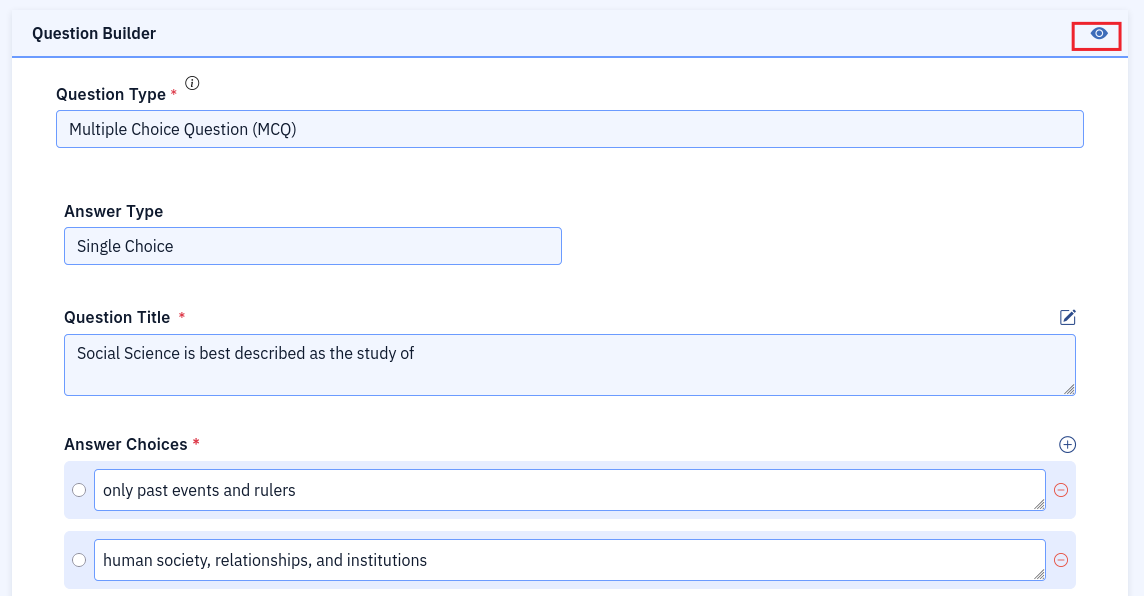
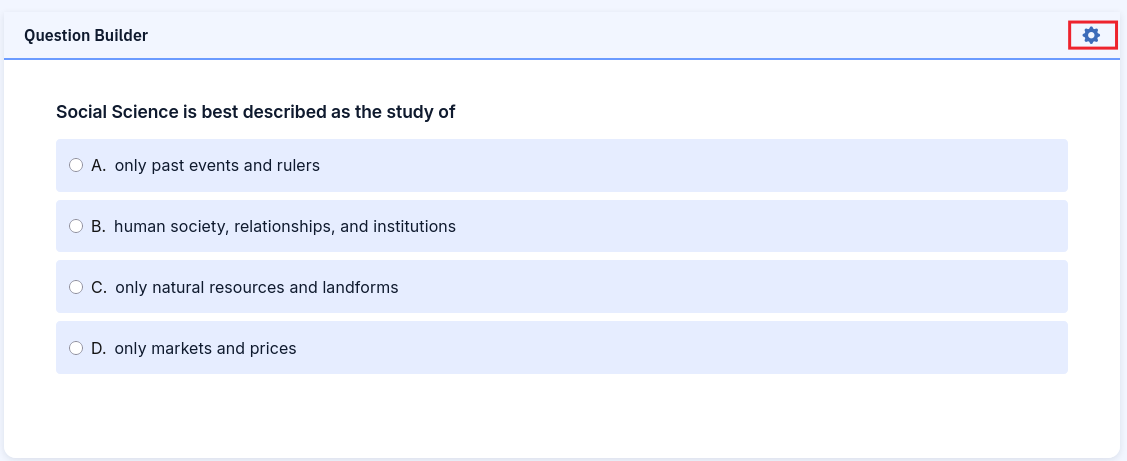
Exhibit 6.12: The preview toggle switches between Edit mode and Preview/Test mode.
MCQ question
An MCQ question presents a collection of answer choices.
Fields
| Field | Description |
|---|---|
| Answer type | Selects Single choice or Multiple choice. The default is Single choice. |
| Question title | Required question prompt. |
| Answer choices | Text displayed for each choice. |
| Correct choice controls | A radio button in Single choice mode or checkboxes in Multiple choice mode. |
Use the plus-circle button to add a choice and the minus-circle button to remove one.
In Single choice mode, exactly one choice can be designated as correct. In Multiple choice mode, one or more choices can be designated as correct.
A valid MCQ requires:
- At least one answer choice.
- Non-empty text for every choice.
- At least one selected correct answer.
Tip
Write choices without numbering, e.g., A, B, C, etc., since they're numbered automatically by the system.
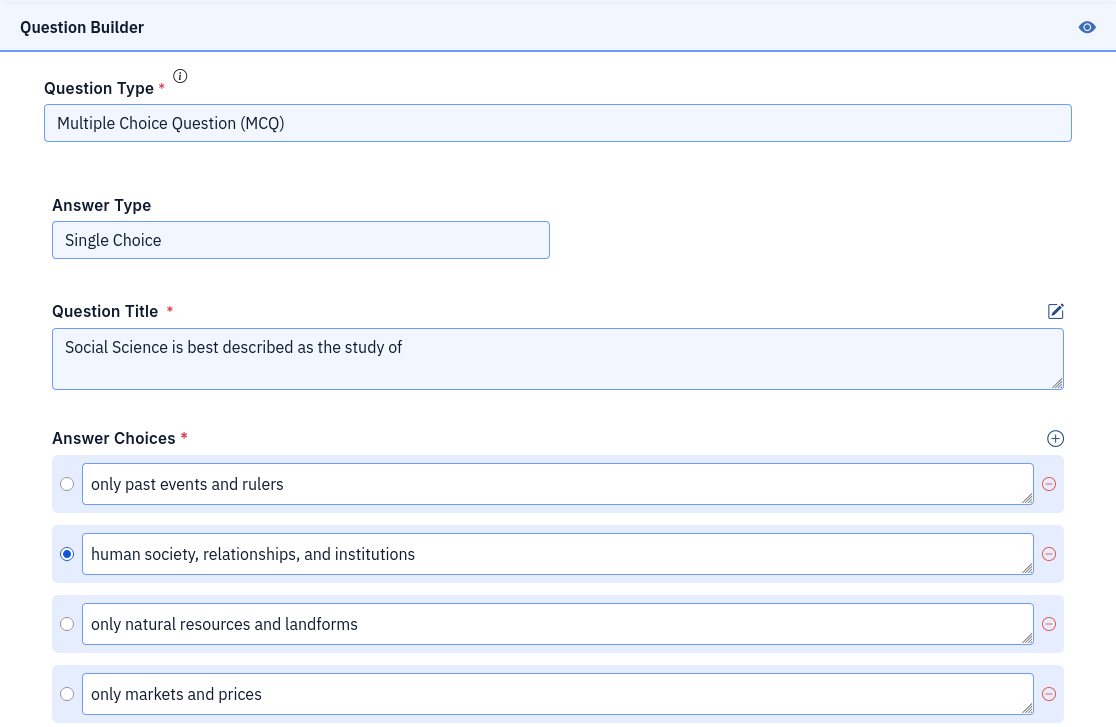
Exhibit 6.4: The MCQ builder in Single choice mode.
True/False question
A True/False question presents one or more statements. Students mark every statement as true or false.
Fields
| Field | Description |
|---|---|
| Question title | Optional heading for the set of statements. |
| Statements | Text of each statement. |
| Answer selector | Sets the model answer for each statement to True or False. |
Use the plus-circle button to add a statement and the minus-circle button to remove one.
A valid True/False question requires:
- At least one statement.
- Non-empty text for every statement.
- A True or False model answer for every statement.
Tip
Use the optional title along with the rich-text editor to give context, like a picture or passage, to the question.
Tip
Write True/False statements without numbering, e.g., A, B, C, etc., since they're numbered automatically by the system.
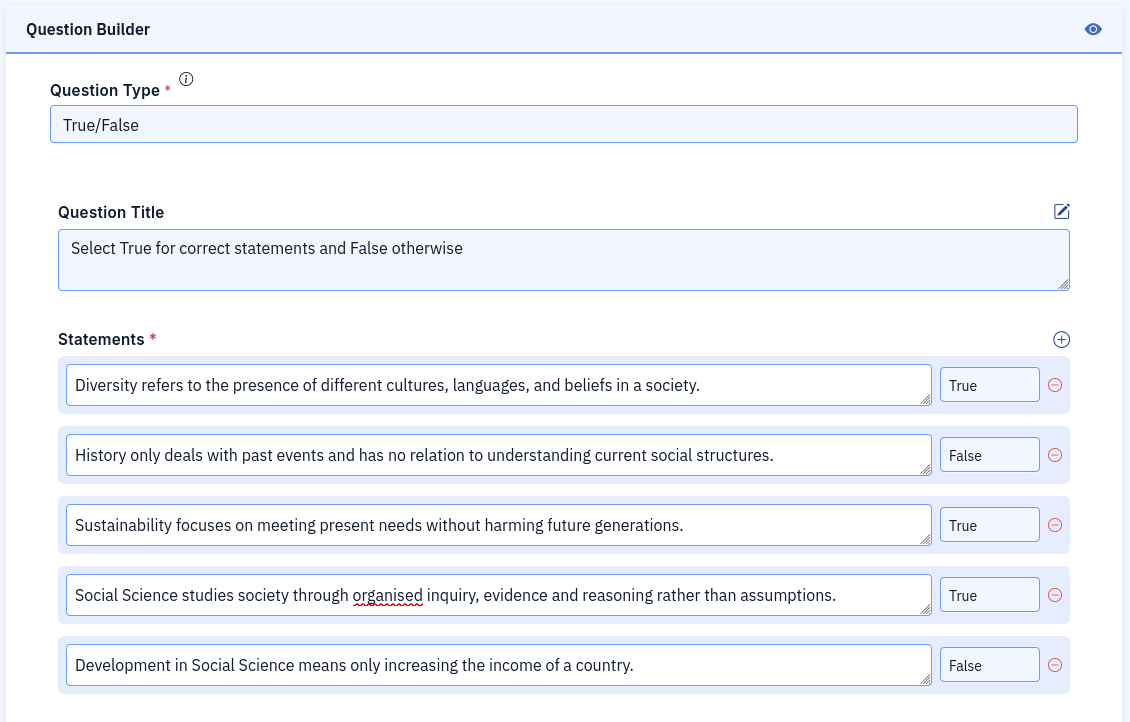
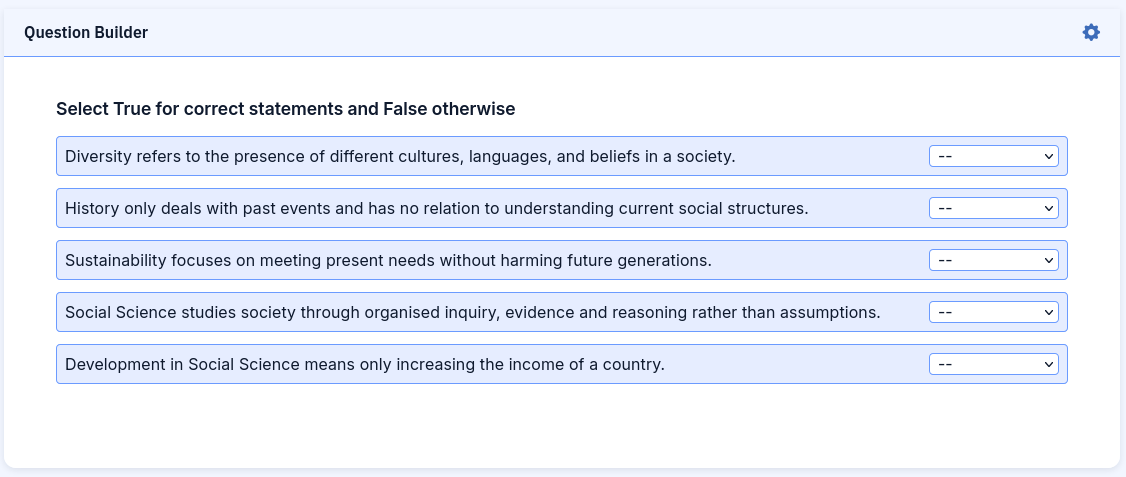
Exhibit 6.5: The True/False builder with statements and their model answers, in builder and preview modes.
Fill in the Blank question
A Fill in the Blank question places one or more answer fields inside a passage.
Fields
| Field | Description |
|---|---|
| Question title | Optional heading for the question. |
| Question text | The passage containing the blanks. |
| Edit blanks | Selects which numbered blank is being configured. |
| Blank answer controls | Define the accepted answer or choices for the selected blank. |
Insert [blank] in Question text wherever an answer field should appear. Blanks are numbered in their order of appearance. The first blank is selected automatically when the passage contains blanks.
Blank answer modes
Each blank can use one of these configurations:
One accepted text answer
Enter a single correct answer. The student receives a text input.
Multiple accepted text answers
Use the dotted plus-circle button to add alternative correct answers. A student's text response is marked correct when it matches any configured answer.
Choice list
Use the plus-circle button to add choices, then select the correct choice with its radio button. The student receives a list of choices for that blank.
The multiple-answer and choice-list modes are mutually exclusive for a blank.
Note
Select each entry in Edit blanks separately and verify its accepted answer before moving to the next blank.
Warning
Removing a [blank] marker changes the numbered blank structure. Recheck model answers after editing the question text.
A valid Fill in the Blank question requires:
- At least one
[blank]marker in the question text. - A configured model answer for every blank.
- Non-empty configured answer text.
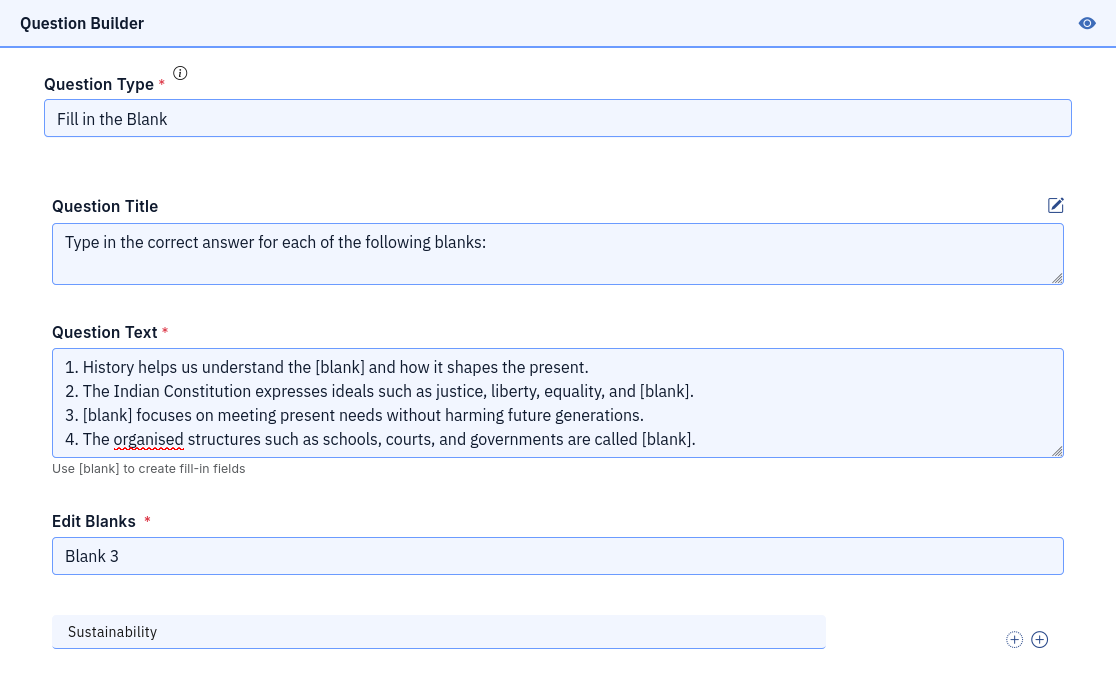
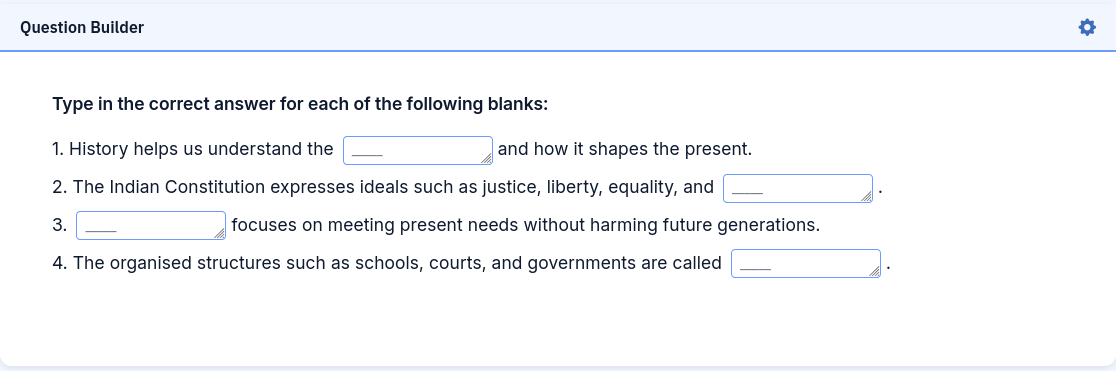
Exhibit 6.6: The Fill in the Blank builder with multiple blanks in the question text in builder and preview mode, respectively.
Short Answer question
A Short Answer question accepts a single-line text response and compares it with one or more accepted answers.
Fields
| Field | Description |
|---|---|
| Question title | Required question prompt. |
| Correct answers | One or more accepted text answers. |
The first answer field is always present. Use the plus-circle button to add alternative accepted answers. Additional answers can be removed with their minus-circle buttons.
Text is normalized before comparison, making matching insensitive to differences handled by the normalization process, including letter case.
A valid Short Answer question requires at least one correct answer, and no correct-answer field may be empty.
Note
Short Answer is automatically graded, but a grader can adjust its earned points manually when a valid variation was not included in the accepted answers.
Tip
Add expected spelling or wording variations as separate accepted answers instead of listing them in one field.
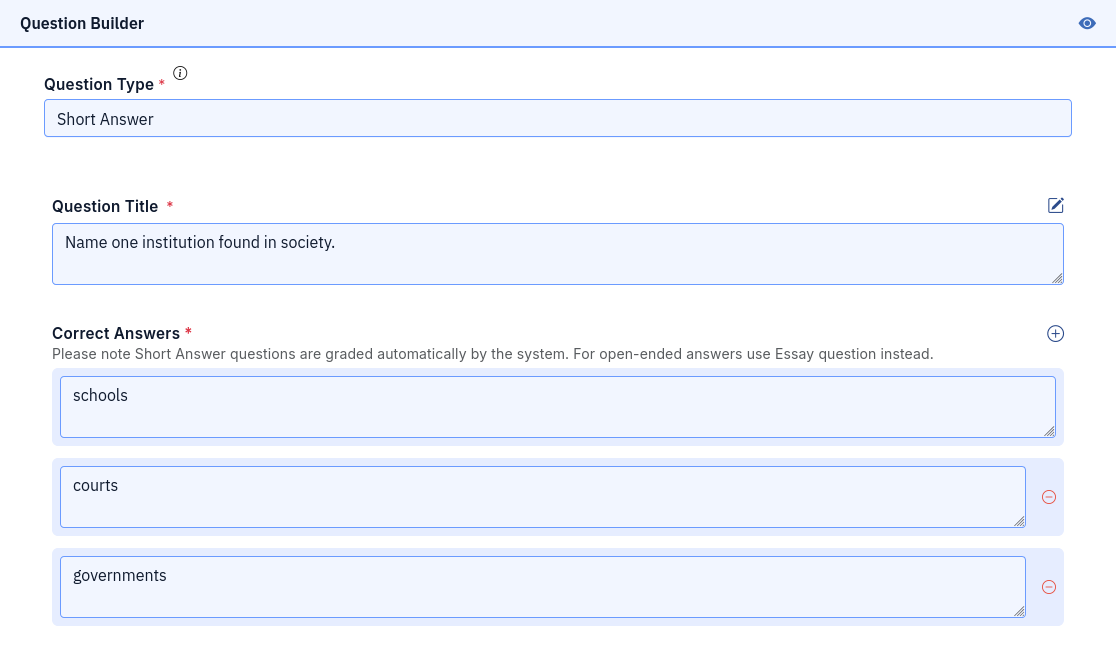
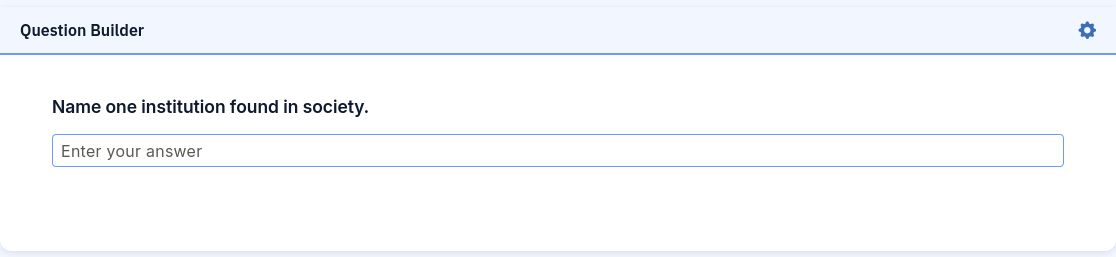
Exhibit 6.7: The Short Answer builder with multiple accepted answers in builder and preview mode, respectively.
Matching question
A Matching question contains two columns. Students associate each item in Column B with one or more items in Column A.
Fields
| Field | Description |
|---|---|
| Question title | Optional heading for the matching activity. |
| Column A | Items identified by letters. |
| Column B | Items identified by numbers. |
| Column B match selector | Selects one or more Column A letters as the model answer for a Column B item. |
Use the plus-circle button in each column to add items. The match selector beside each Column B item is a multi-select list, so one Column B item can be associated with multiple Column A items.
A valid Matching question requires:
- At least one item in each column.
- Non-empty text for every item.
- At least one Column A match for every Column B item.
Note
A Column B item can match more than one Column A item because its match control is a multi-select list.
Warning
Removing an item also removes its model-answer associations. Review the model answer after changing either column.
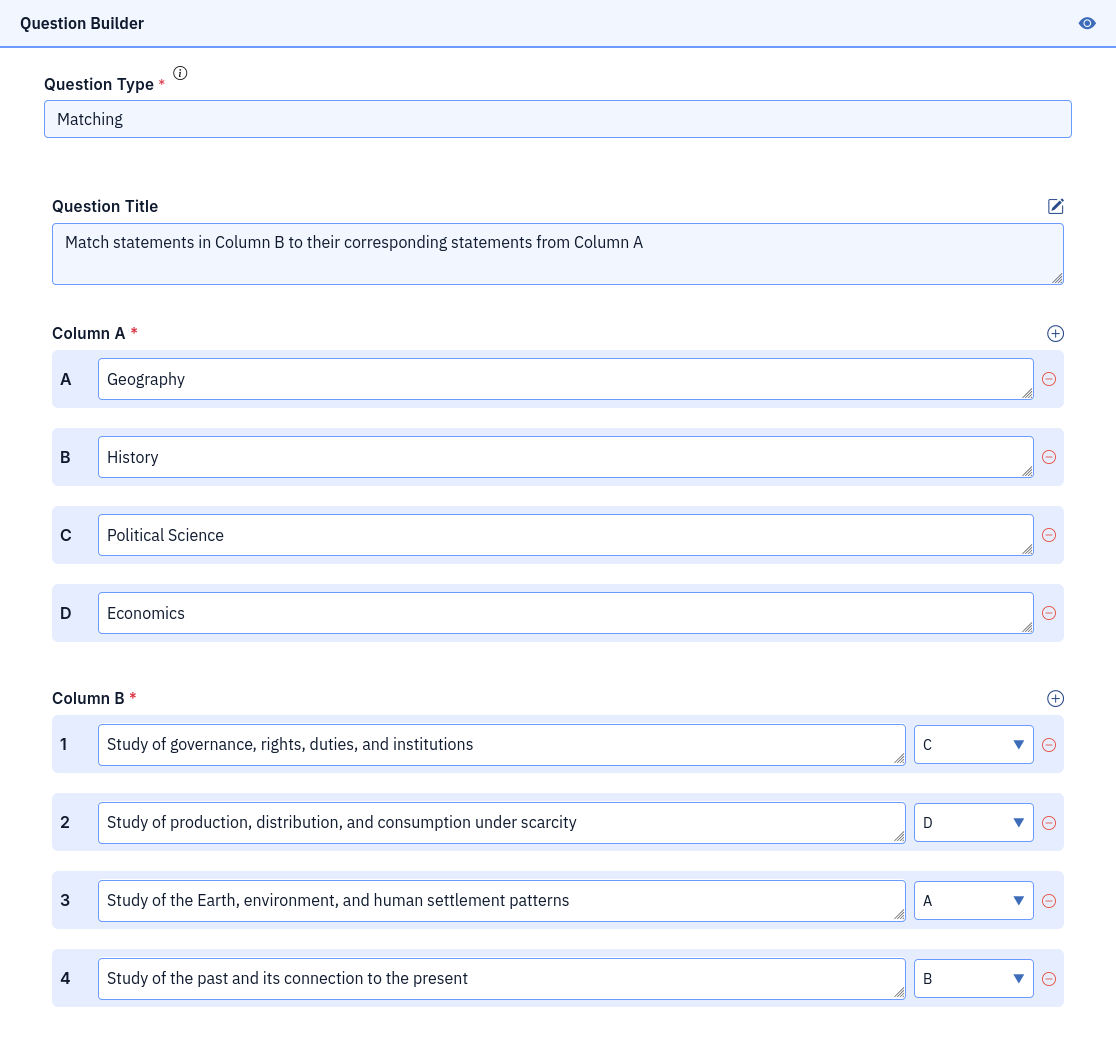
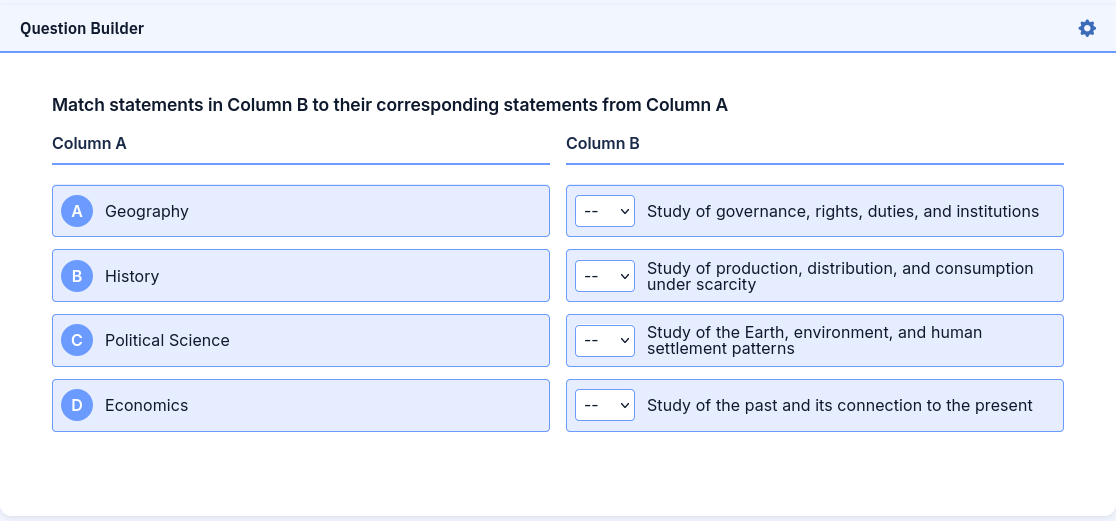
Exhibit 6.11: The Matching builder with items in both columns in builder and preview mode, respectively.
Ordering question
An Ordering question asks students to arrange items into an accepted sequence.
Fields
| Field | Description |
|---|---|
| Question title | Optional heading for the items. |
| Order items | Text of the items to arrange. |
| Position selectors | Assign each item a unique position in an accepted ordering. |
| Alternative orderings | Additional accepted sequences, up to five total orderings. |
| Use drag-drop ordering | Replaces drop-down ordering with a draggable list. To see the difference, toggle to the preview mode. |
Use the plus-circle button to add an item. For every ordering column, assign an order.
Use the 123 button to add another accepted ordering. It accepts a maximum of five different correct orderings. Alternative ordering columns can be removed; the primary ordering remains.
A valid Ordering question requires:
- At least one item.
- Non-empty text for every item.
- A complete position assignment for every accepted ordering.
Tip
Add an alternative ordering only when more than one complete sequence is correct.
Tip
Order statements are shuffled automatically by the system without any need for randomization in the question builder.
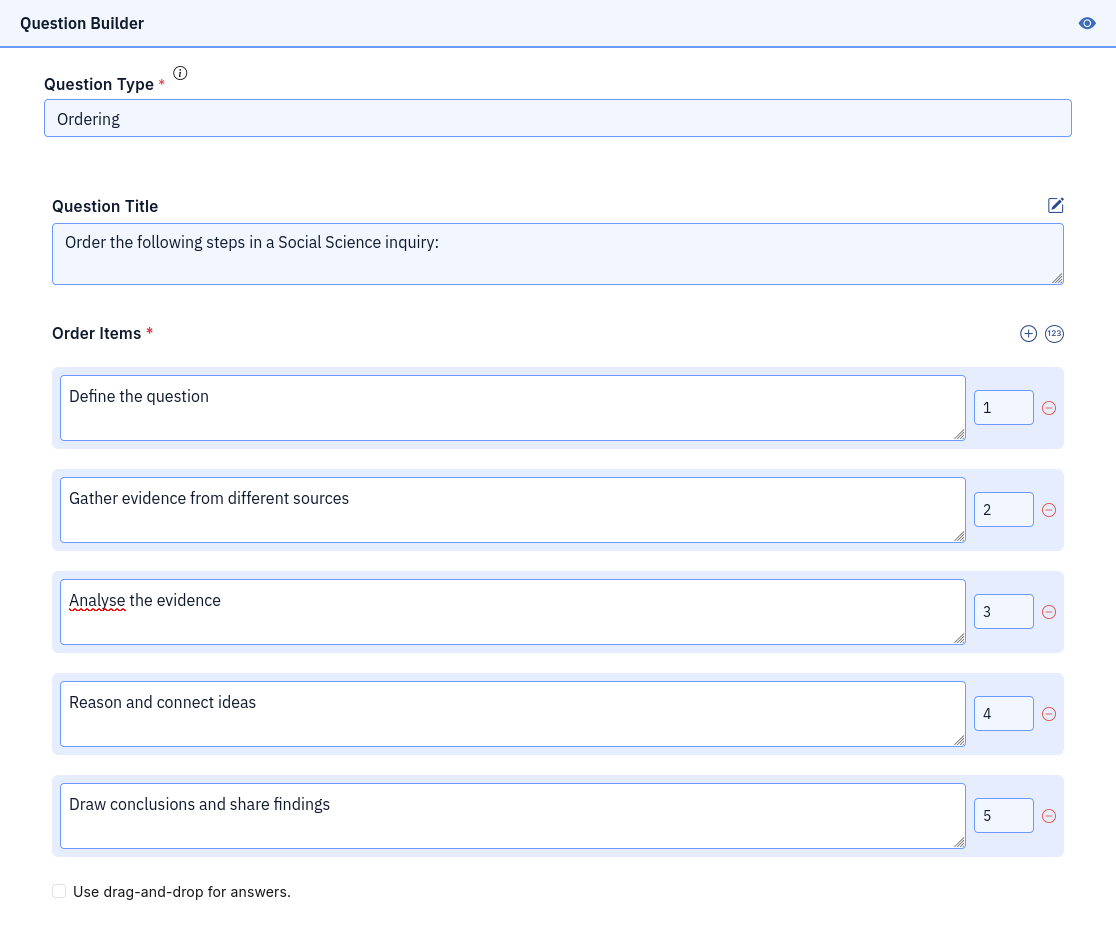
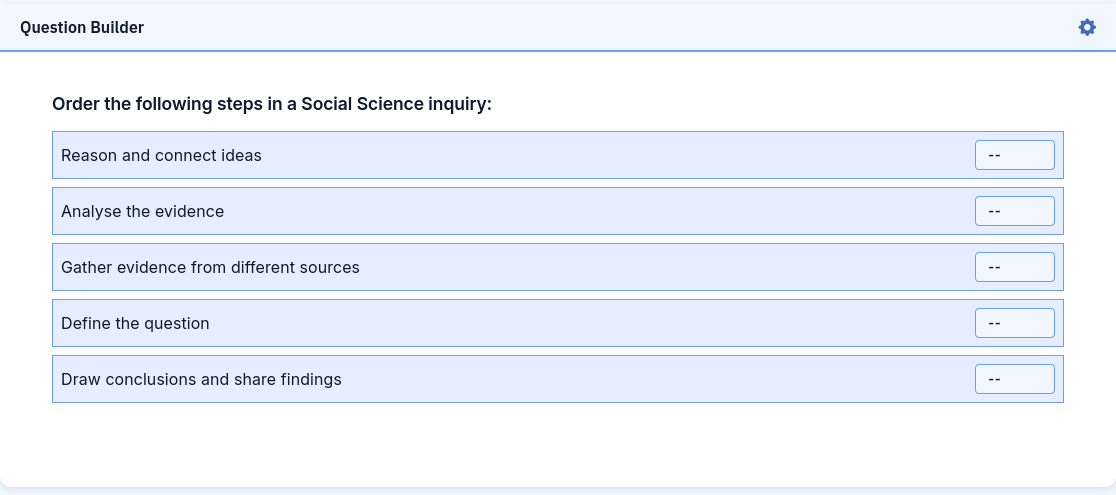
Exhibit 6.10: The Ordering builder with items and two accepted orderings in builder and preview mode, respectively.
Essay question
An Essay question accepts a long-form response. Essay questions are graded manually.
Fields
| Field | Description |
|---|---|
| Question title | Required question prompt. |
| Model answer | Optional reference answer for the grader. |
| Use advanced editor | Gives students a rich-text editor instead of a plain text area. |
The pencil button beside Model answer switches its field between a simple text area and the advanced rich-text editor. This setting is independent from the student's answer editor.
When Use advanced editor is selected, students can submit formatted rich text. Otherwise, they receive a plain multi-line text area. To check the difference, you can toggle the preview mode.
Note
Essay questions are not scored automatically. A grader must assign the earned points.
Tip
Use the optional model answer to give graders a reference response, and place scoring criteria in Grading notes.
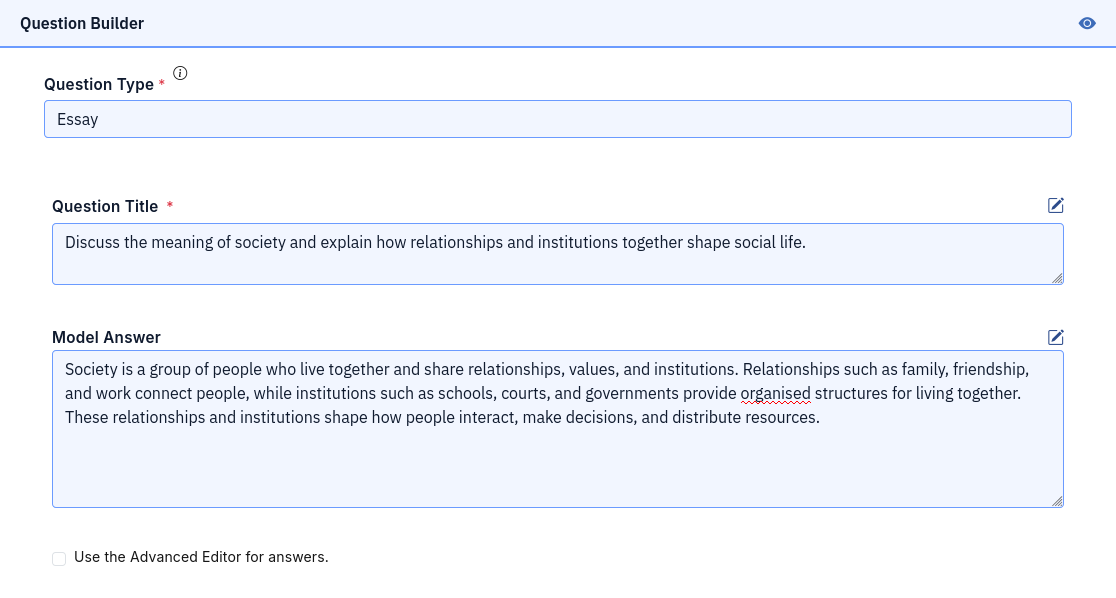
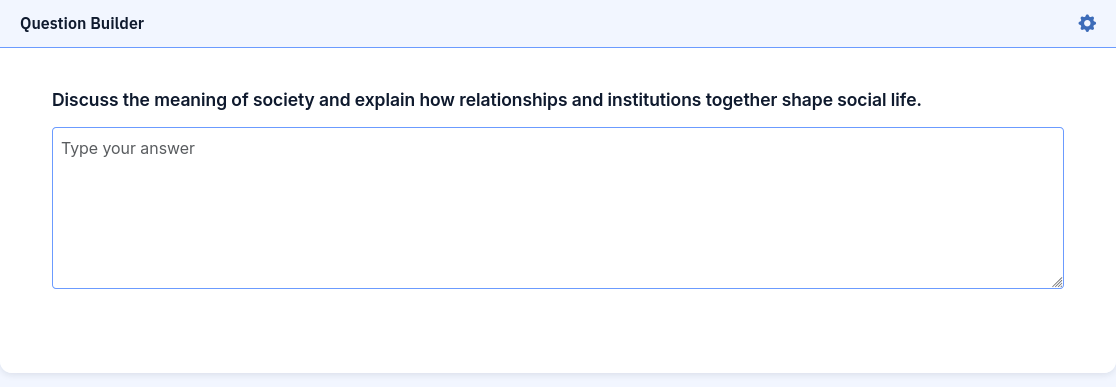
Exhibit 6.8: The Essay builder and its model-answer and student-editor settings in builder and preview mode, respectively.
Attachment question
An Attachment question asks the student to submit one or more files. Attachment questions are graded manually.
Fields
| Field | Description |
|---|---|
| Question title | Required question prompt. |
| Model answer attachment | Optional reference file or files for the grader. |
Note
Attachment questions are not scored automatically. A grader must review the submitted files and assign the earned points.
Tip
Use the model-answer attachment when graders need a sample file, template, or expected output for comparison.
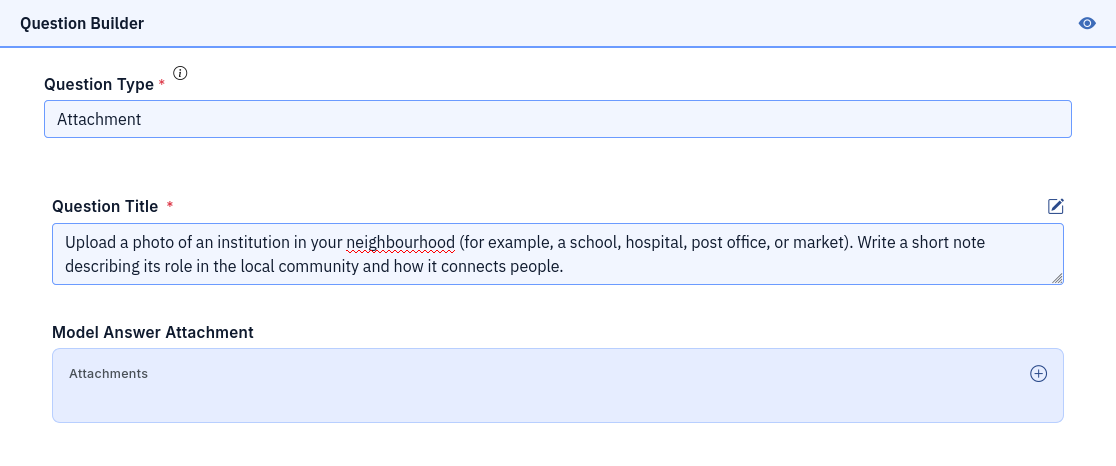
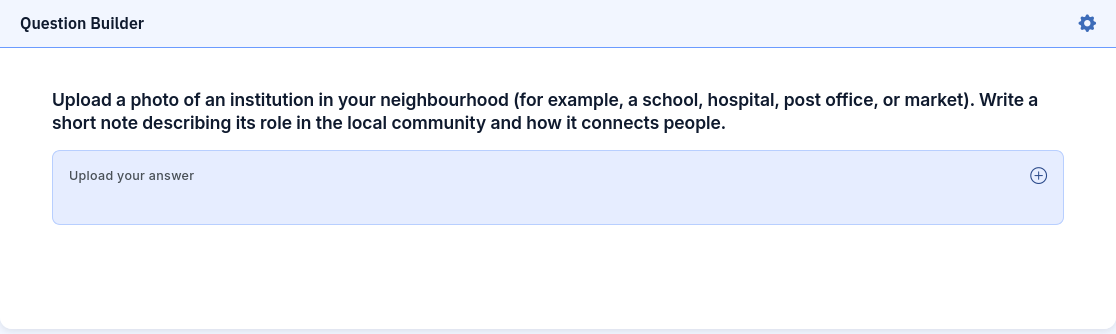
Exhibit 6.9: The Attachment builder with an optional model-answer attachment in builder and preview mode, respectively.
Grading behavior
Automatically graded types
The following question types are compared with their configured model answers automatically:
- MCQ
- True/False
- Fill in the Blank
- Short Answer
- Matching
- Ordering
Manually gradable types
The grade editor is available for:
- Fill in the Blank
- Short Answer
- Essay
- Attachment
This allows a grader to assign or adjust the earned points for text-oriented and file-based answers.
The grade editor contains:
| Field | Description |
|---|---|
| Grading notes | Displays the private notes saved with the question, when present. |
| Earned points | Sets the awarded score from zero to the question's possible points. |
| Justification | Records an optional explanation for the assigned score. |
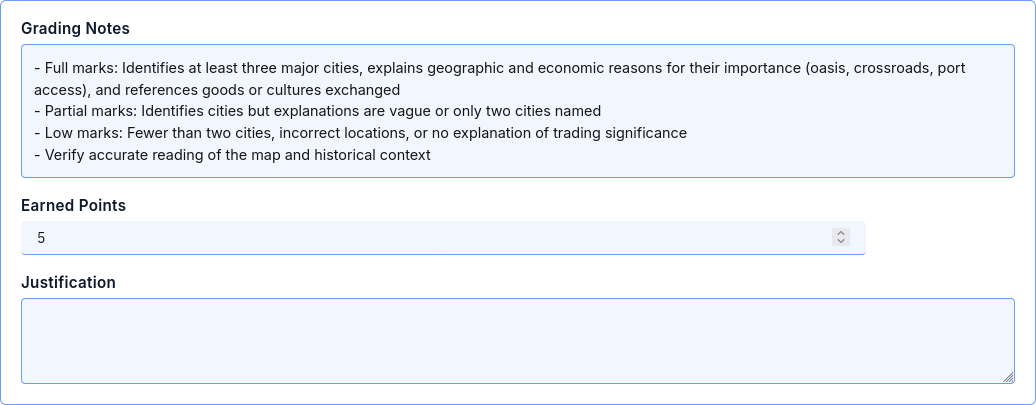
Exhibit 6.13: The grade editor for a manually gradable question.
Tip
Use Preview before saving to confirm that the question text and answer controls, appear as intended.
Additional resources
Tutorials
Build a reusable collection of questions for a subject.
Assemble questions from a test bank and publish an assessment to students.
 References
Detailed reference for every challenge setting and preset.
How the three submission-list statuses work and combine.