Set the theme/skin of the platform
Estimated time: 4 minutes
This guide shows you how to change the color theme of SageNova LMS for your own account. The theme affects the colors of menus, buttons, forms, and other interface elements while you are signed in. The theme is preserved per browser.
Prerequisites
- You are signed in to your account.
Open the Settings page
- Sign in to the platform.
- From the Account off-canvas menu, select Settings.
The Settings page opens with the Site settings section visible.
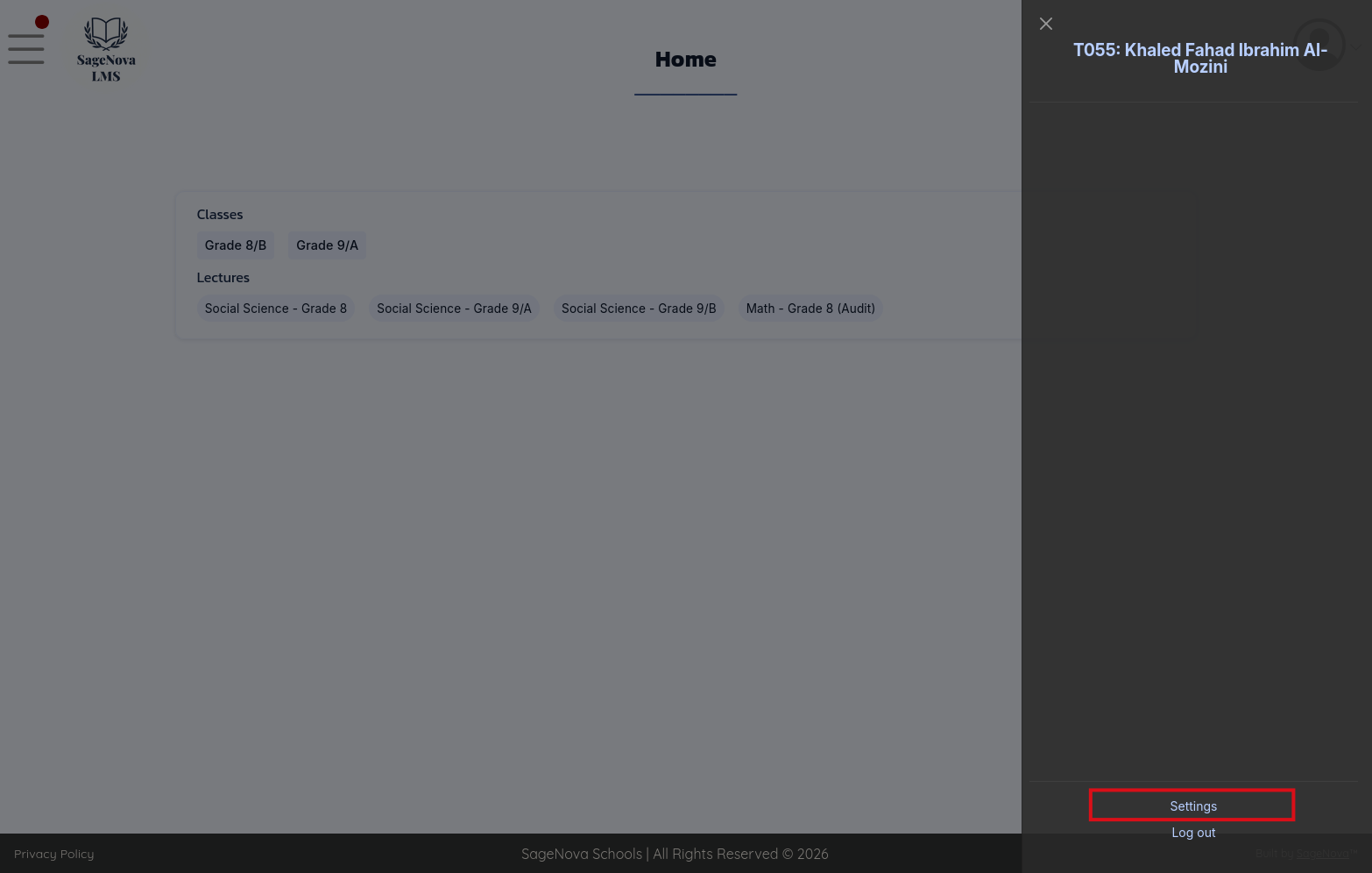
Exhibit 1.1: Select Settings from the account off-canvas menu to open the Settings page.
Choose a theme
In the Site settings section:
- Find the Site theme & skins field.
-
Click the dropdown to see the available color themes: Deep blue (default), Slate, Teal, Cerise, Emerald, Amethyst, and Midnight.
-
Select the theme based on your preference and style.
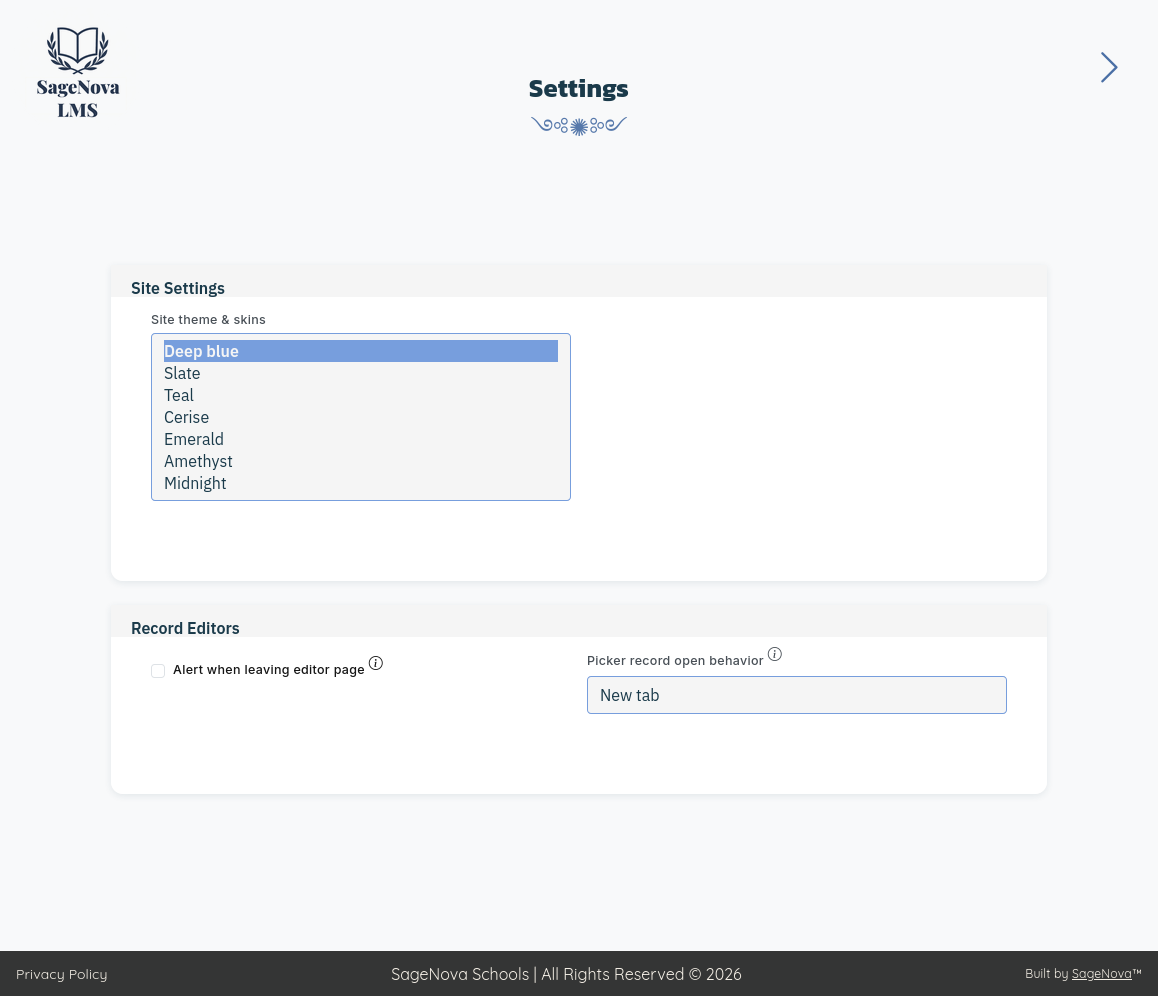
Exhibit 1.2: The Theme list displays all available color themes.
The platform saves the theme for your account on the browser and reloads the page so the new colors take effect immediately.
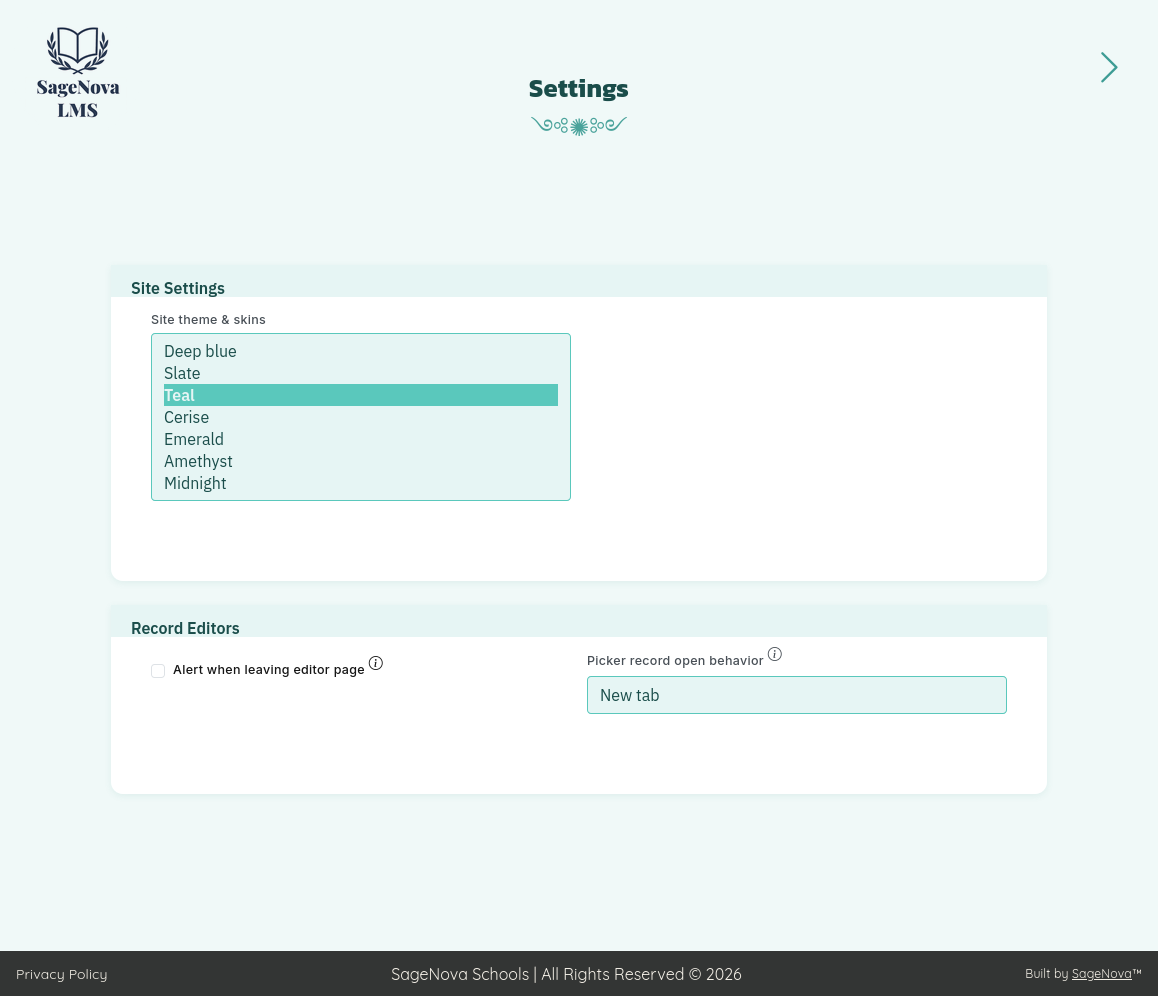
Exhibit 1.3: The page reloads and the new theme colors are applied immediately.
Where the theme is applied
The selected theme is applied to all pages you visit while signed in. It is stored as a personal setting, so it does not change the theme for other users.
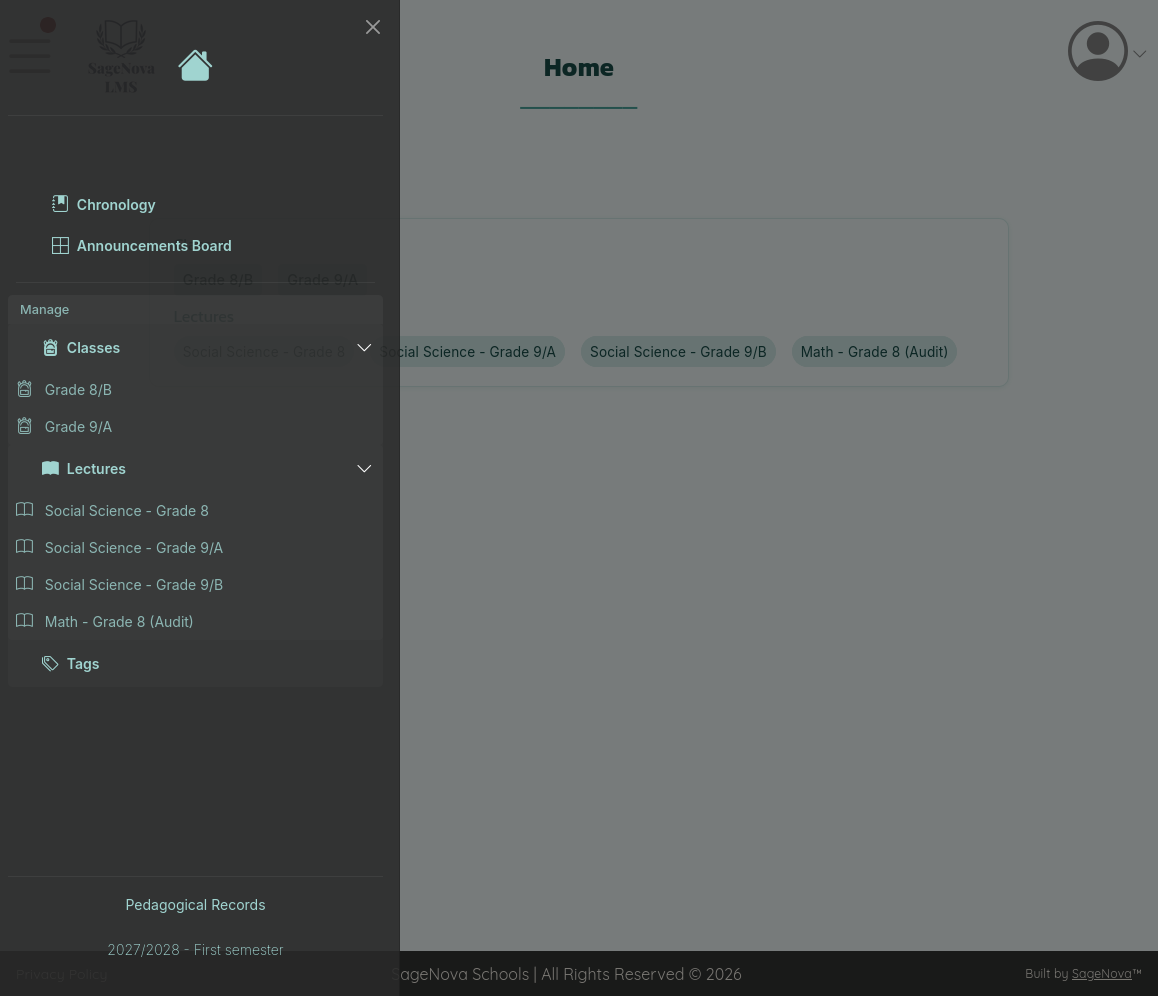
Exhibit 1.4: The chosen theme colors are visible across all pages, including lecture and class views.
If the school has set a default theme, your personal choice takes priority whenever you are signed in. Selecting Deep blue restores the default look if you want to remove your personal theme override.
Tip
If you do not see the change after selecting a theme, refresh the page once. The theme style sheets are loaded when the page reloads.
Note
Themes are cosmetic only. They do not affect content, permissions, or functionality.
Additional resources
Tutorials
Assemble questions from a test bank and publish an assessment to students.
Review submissions, adjust scores, and release grade reports.