How to create and attach your guardian account from your child account
This guide shows you, as a guardian, how to create your own SageNova account and attach it to your child's student account. You will use your child's login to start the process.
Before you start
- You need access to your child's SageNova account.
Guardian limit
A student account can have up to three attached guardians. If your child already has three, ask the school admin to add another one.
Steps
-
Log in to your child's account, then open the child's Profile page. In the secondary off-canvas menu, click on the child's name.
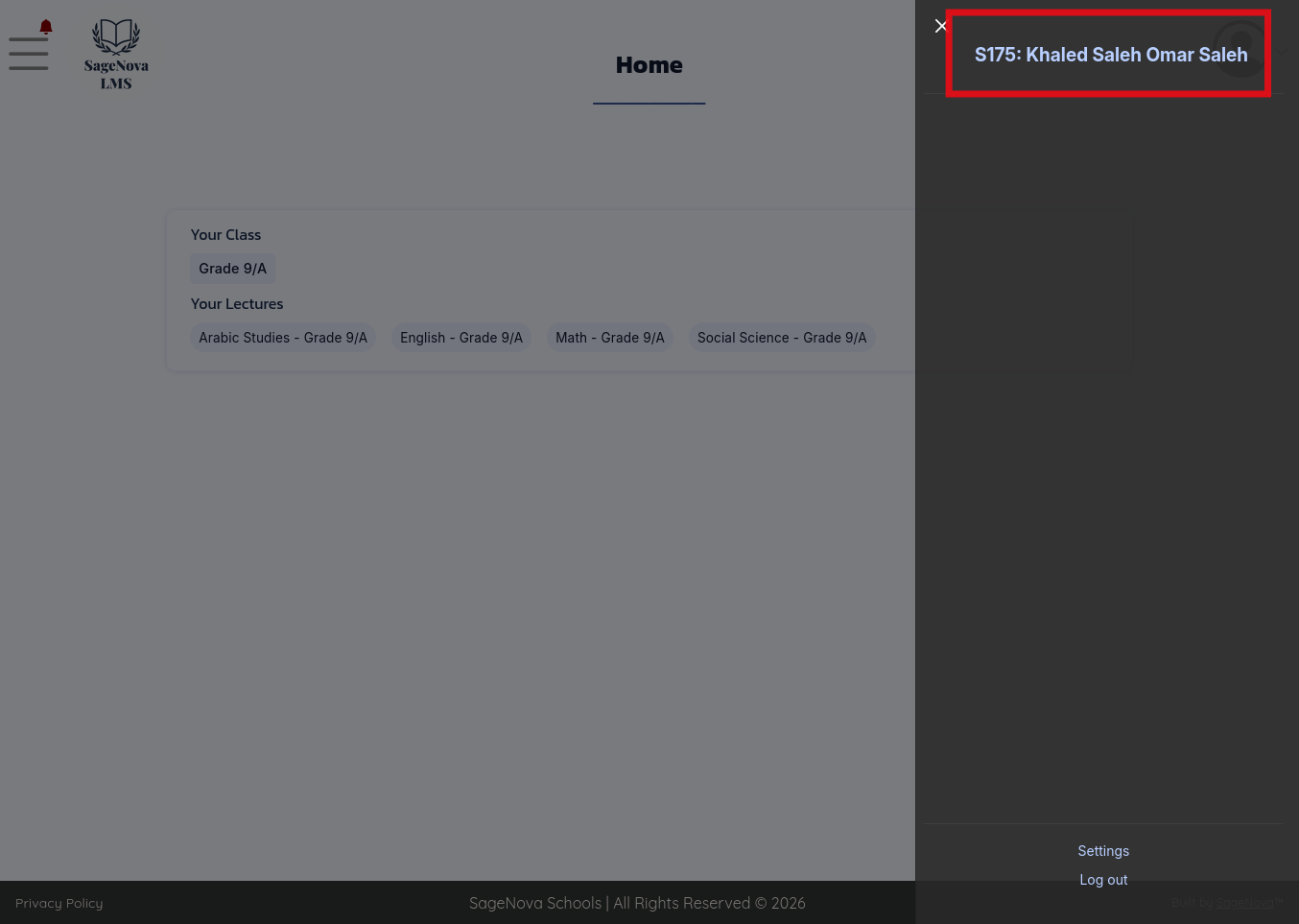
Exhibit 1: Open the student Profile page from the secondary off-canvas menu.
-
Scroll to the Household members section.
-
Click the Add guardian button.
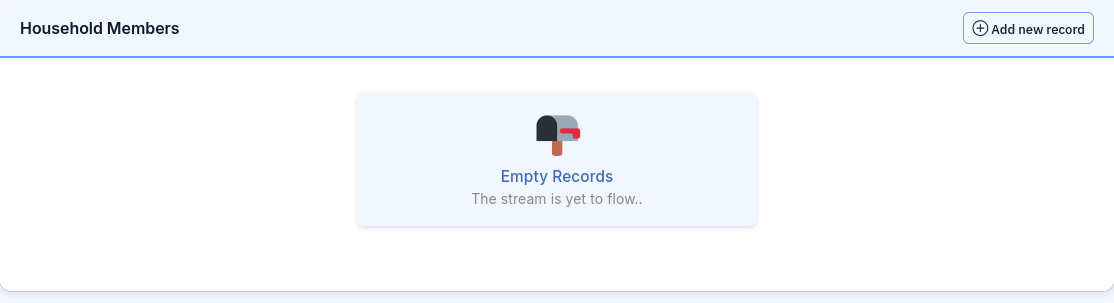
Exhibit 2: The Household members section on the student profile.
-
The Attach guardian form opens. Fill in the required fields:
- Full name — your full name.
- Email — a valid email address. This is used for activating your account, logging in, and receiving school notifications.
- Gender — select your gender.
-
Guardian relationship — select how you are related to the child, for example:
- Father / Mother
- Brother / Sister
- Uncle / Aunt
- Grandfather / Grandmother
- Cousin
- Relative
- Other
-
Phone — your phone number (required).
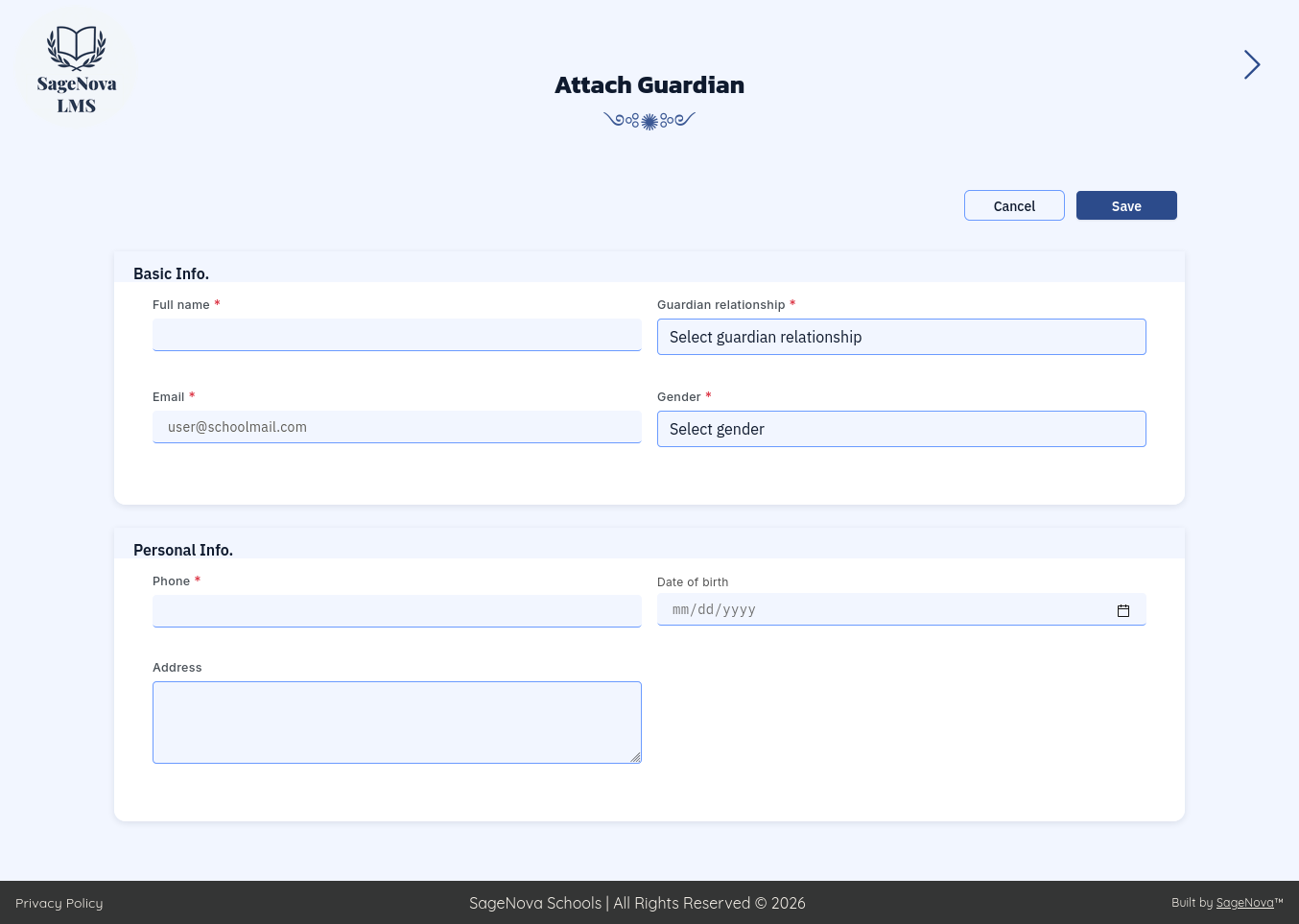
Exhibit 3: The Attach guardian form.
Use a valid email
The email address is used for activating your account, logging in, and for all school notifications. Make sure it is typed correctly.
-
Optionally fill in the extra fields:
- Date of birth
- Address
- Bio
-
Click Save.
-
After saving, your guardian account is created and linked to the child's household section. If you used a Gmail address, log in to your account from the login page for the first time. Otherwise, scroll down on your page to the Critical Actions section to send the activation email.
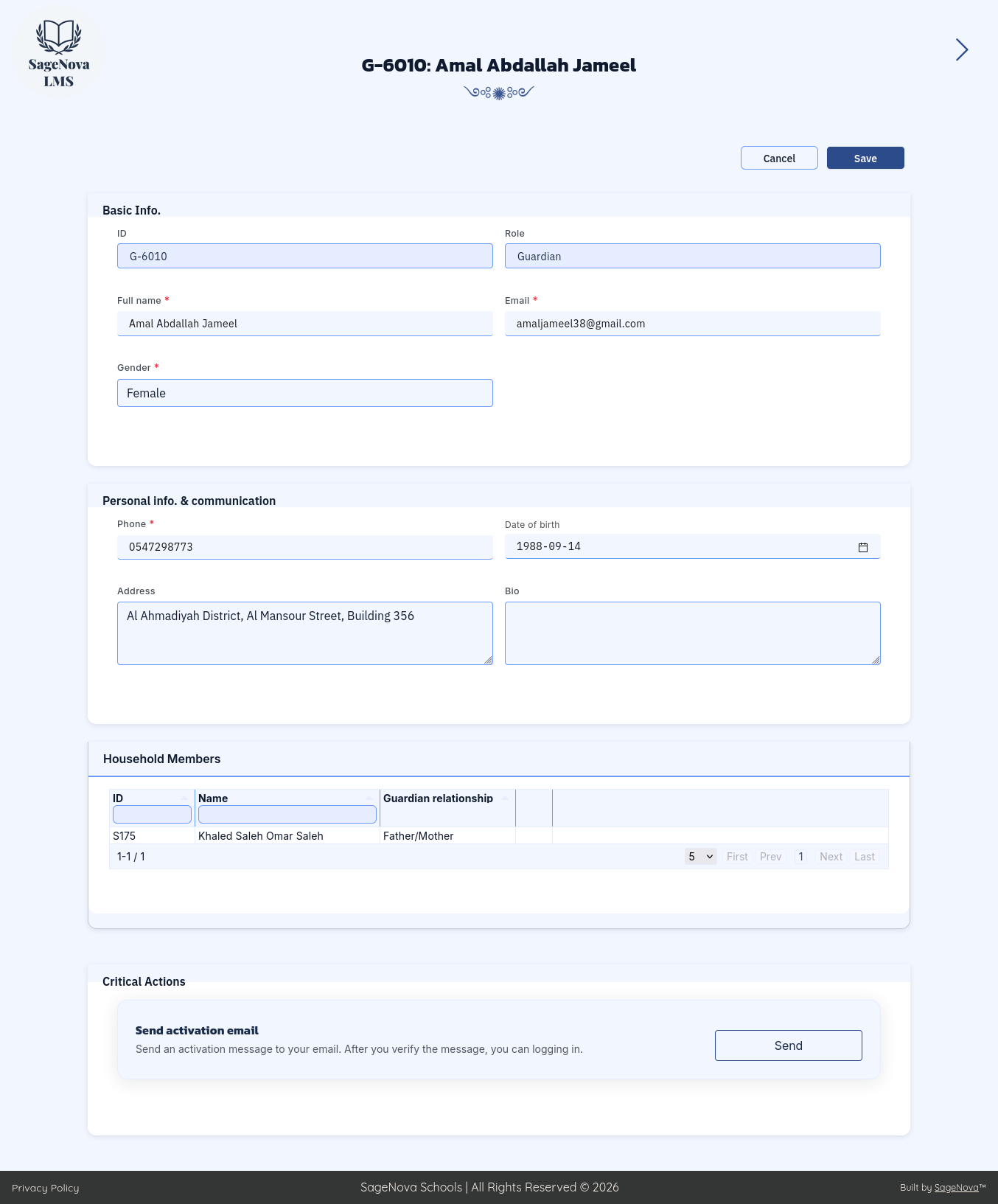
Exhibit 4: The guardian record after saving.
Note
Before activating your account, you can access your information page anytime from the household section in your child's profile.
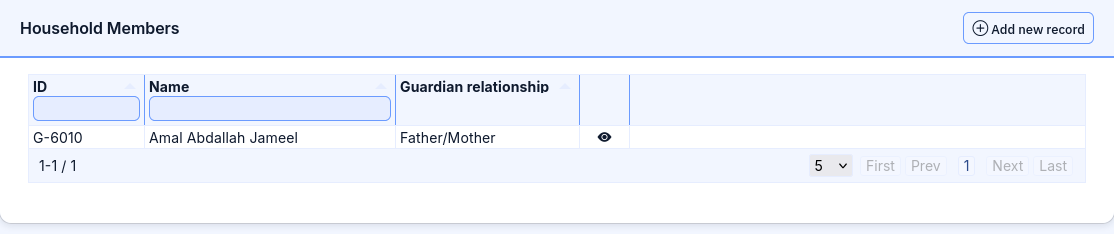
Exhibit 5: Reopen your guardian information page from the child's Household members section.
Gmail and Google sign-in
If the email address is a Gmail address you can log in directly using the Sign in with Google button on the access pages. The first successful Google sign-in automatically activates the account and completes the registration.
What happens next
- You can now log in with your email address and the password you create.
- You will be able to see the child's student record and receive school announcements related to their classes.
Activation email
Updating your email sends a new activation email if you have not yet completed registration.