Utilize the off-canvas menu 'Search & Filter'
Estimated time: 6 minutes
The off-canvas Search & Filter section helps you narrow a feed without leaving its page. This guide uses the Chronology feed to demonstrate filtering by content type and tag, but the same controls are available on other supported lists and feeds.
Access: From the main off-canvas menu, select Chronology.
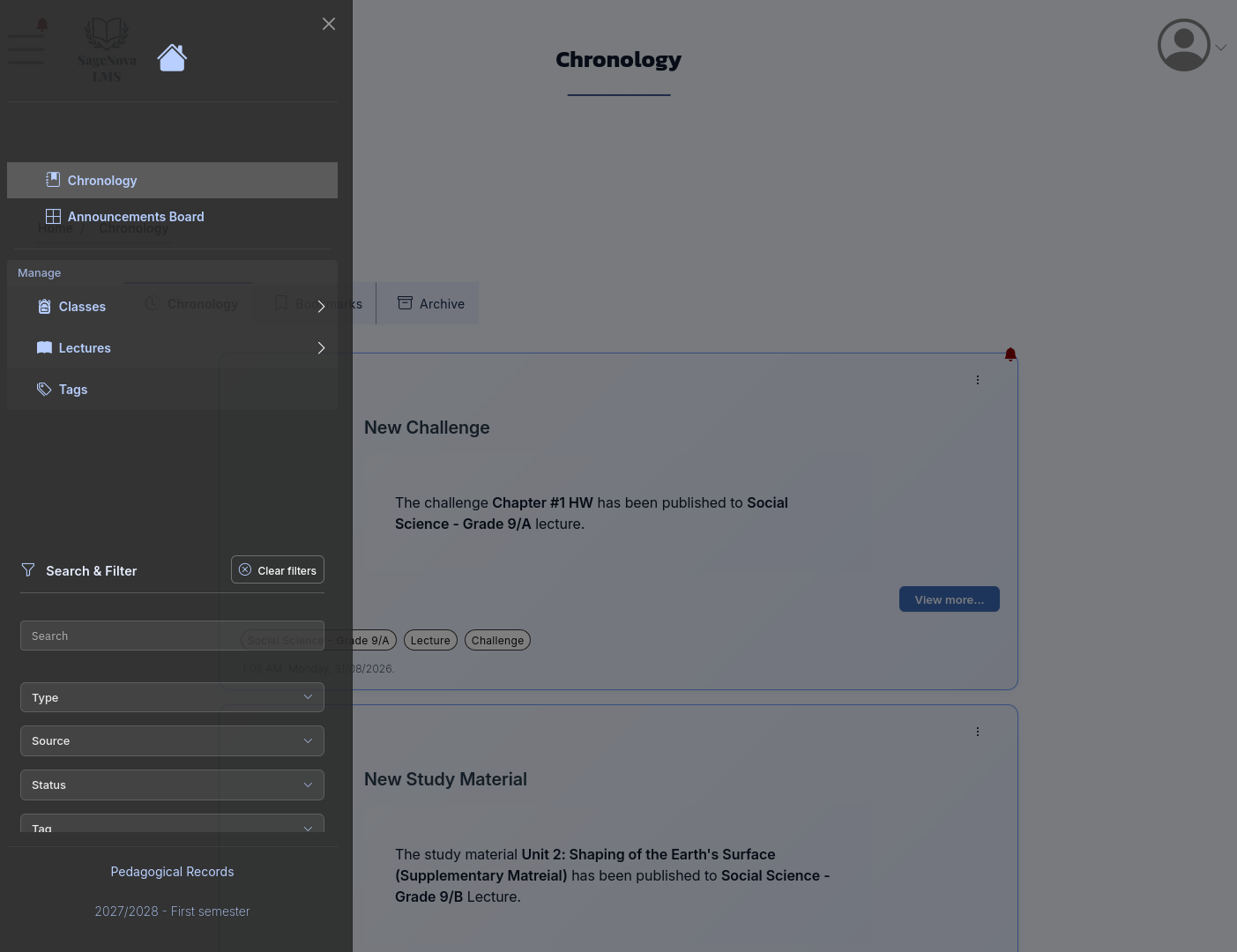
Exhibit 11.1: Open Chronology from the main off-canvas menu.
Understand the chronology feed
Chronology collects recent activity into one feed. Depending on your role and available records, it can include:
- Announcements.
- Study material.
- Challenges & grades. Grade reports and submissions that need grading are grouped under this type.
The page separates records into three tabs:
- Chronology — the normal feed.
- Bookmarks — records you bookmarked.
- Archive — records you archived.
Open the off-canvas menu while viewing a tab to display the filters for that tab.
Note
Filter choices are generated from the records available in the current tab. A filter or option is omitted when there are no relevant choices to display.
Filter by type
Use Type when you want to see one or more broad categories of chronology activity.
- Open the off-canvas menu.
- In Search & Filter, expand Type.
- Select one or more options:
- Announcements for published announcements.
- Study material for published learning material.
- Challenges & grades for challenge activity, including challenge publications, released grade reports, and submissions that need grading.
- Review the feed. It updates immediately after each selection; there is no separate Apply button.
- Click on an item again to remove it from the filter.
Selecting multiple values in Type shows records matching any selected type.
Tip
To distinguish challenge publications from grade reports or submissions that need grading, select Challenges under Type, then select Needs Grading in the Tag filter to narrow the results further.
Filter by tag
Use Tag to find chronology records associated with a more specific topic or property.
- Open the off-canvas menu.
- In Search & Filter, expand Tag.
- Select the required tag. The feed updates immediately.
- Select additional tags when you want to include records carrying any of those tags.
- Clear a selected tag to remove it from the filter.
The available choices can include author-created tags and useful activity tags such as Attachment, Grade report, or Needs grading. System labels that already belong to broader filters, such as content type or source, are not repeated in the Tag list.
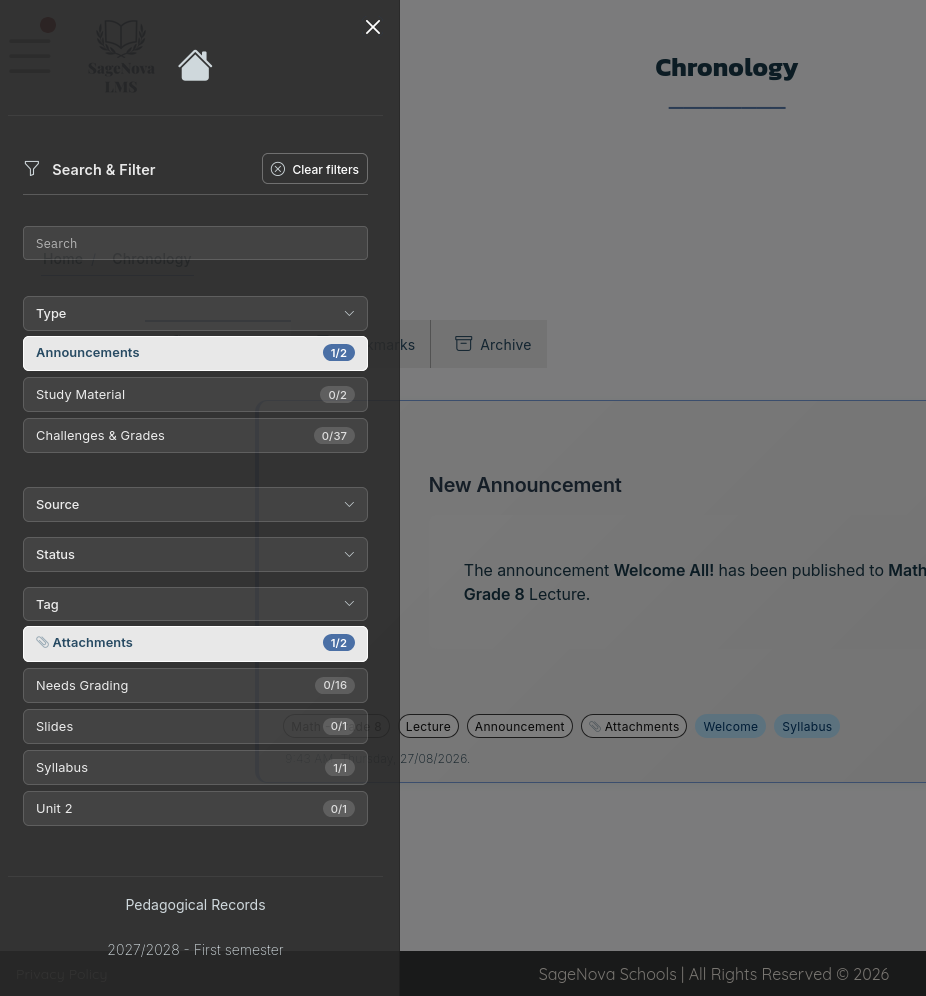
Exhibit 11.2: Tag filter includes author-created tags and most of the system-generated tags.
Info
Some tags are restricted by audience or ownership. For example, Staff-only and Private tags appear only when your account is allowed to see them.
Combine filters
Filters in different sections work together. For example:
- Select Challenges & grades under Type.
- Select Needs grading under Tag.
The feed then shows records that satisfy both selections: they belong to challenge activity and carry the Needs grading tag.
Info
Within one filter, selected options use OR logic. Across different filters, the selections use AND logic.
You can also use the Search field with Type or Tag. Search matches text in the chronology card's title or content, and the other filters are combined to those matches.
Tip
The number beside each option indicates how many records match it, helping you choose a filter before selecting it.
Clear all filters
Select Clear filters in the Search & Filter heading to clear filters and restore the complete feed for the current tab.
Info
Closing the off-canvas menu keeps the filtered results visible in the feed.
Other chronology filters
Your role and the records in the feed can make additional filters available:
| Filter | Purpose |
|---|---|
| Search | Finds text in card titles and content. |
| Source | Limits records to a particular lecture, class, or school-wide. |
| Status | On the Chronology tab, limits the feed to read or unread records. |
| Student | For guardians with more than one child, limits records from one child. |
Note
Filters work on each tab; Chronology, Bookmarks, and Archive feed separately.
Additional resources
Tutorials
Save cards for quick access or move them out of the main feed.
Create and apply tags to filter announcements, material, and challenges.