Pedagogy records
This reference explains what teachers can view and edit for subjects, classes, and lectures in SageNova LMS.
Warning
Records management is the responsibility of System Admins. Thus, in most cases, they should be contacted for desired changes.
Access the pedagogy record panels
- Open the main off-canvas menu.
- Select Pedagogical records.
- The panels appear on the main canvas: School users, Classes, Lectures, and Subjects panels.
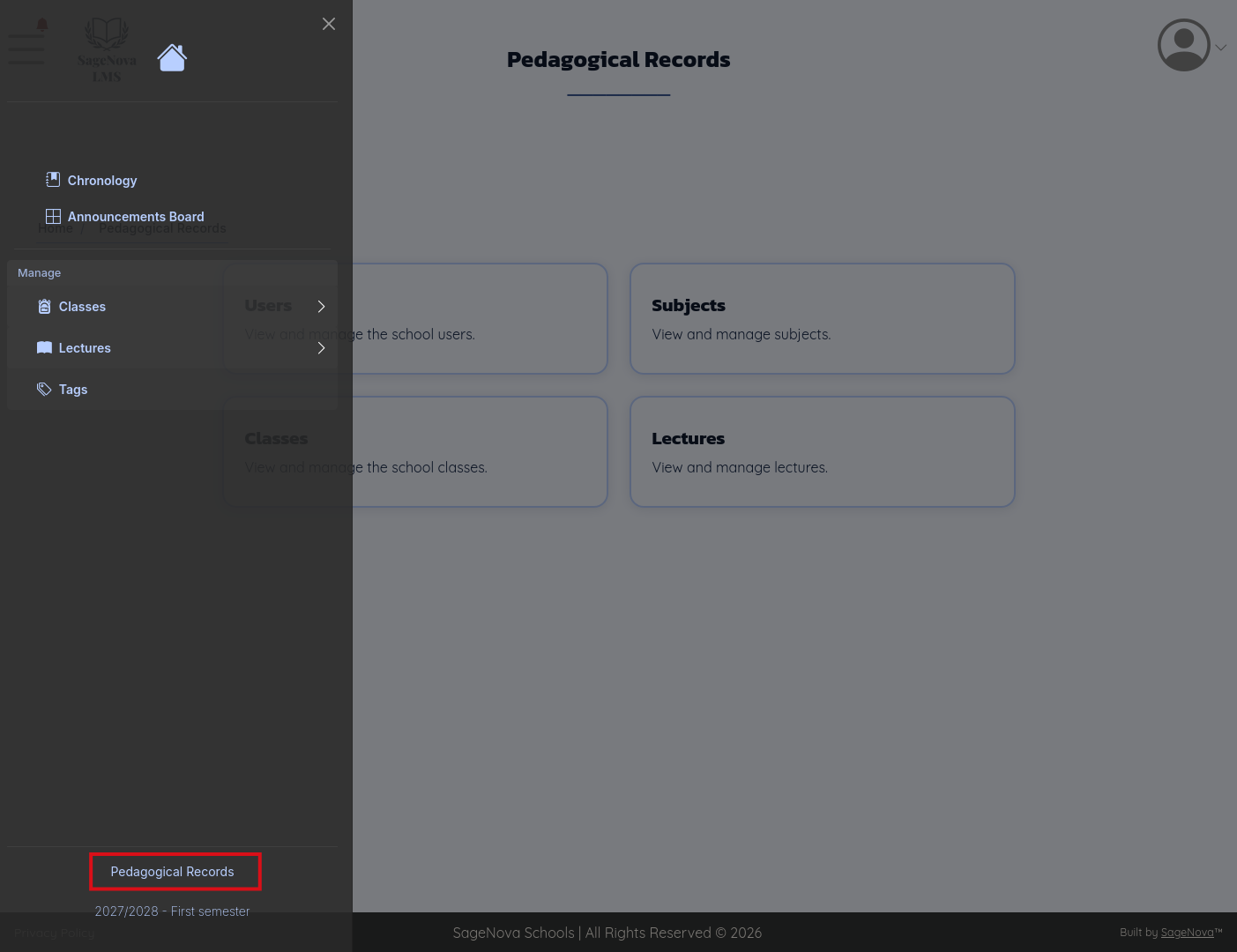
Exhibit 1.0: The Pedagogy record panels in the lounge give access to School Users, Subjects, Classes, and Lectures.
Lecture records
Lectures are scheduled learning sessions for classes. You can view, filter, sort, and export the lectures list.
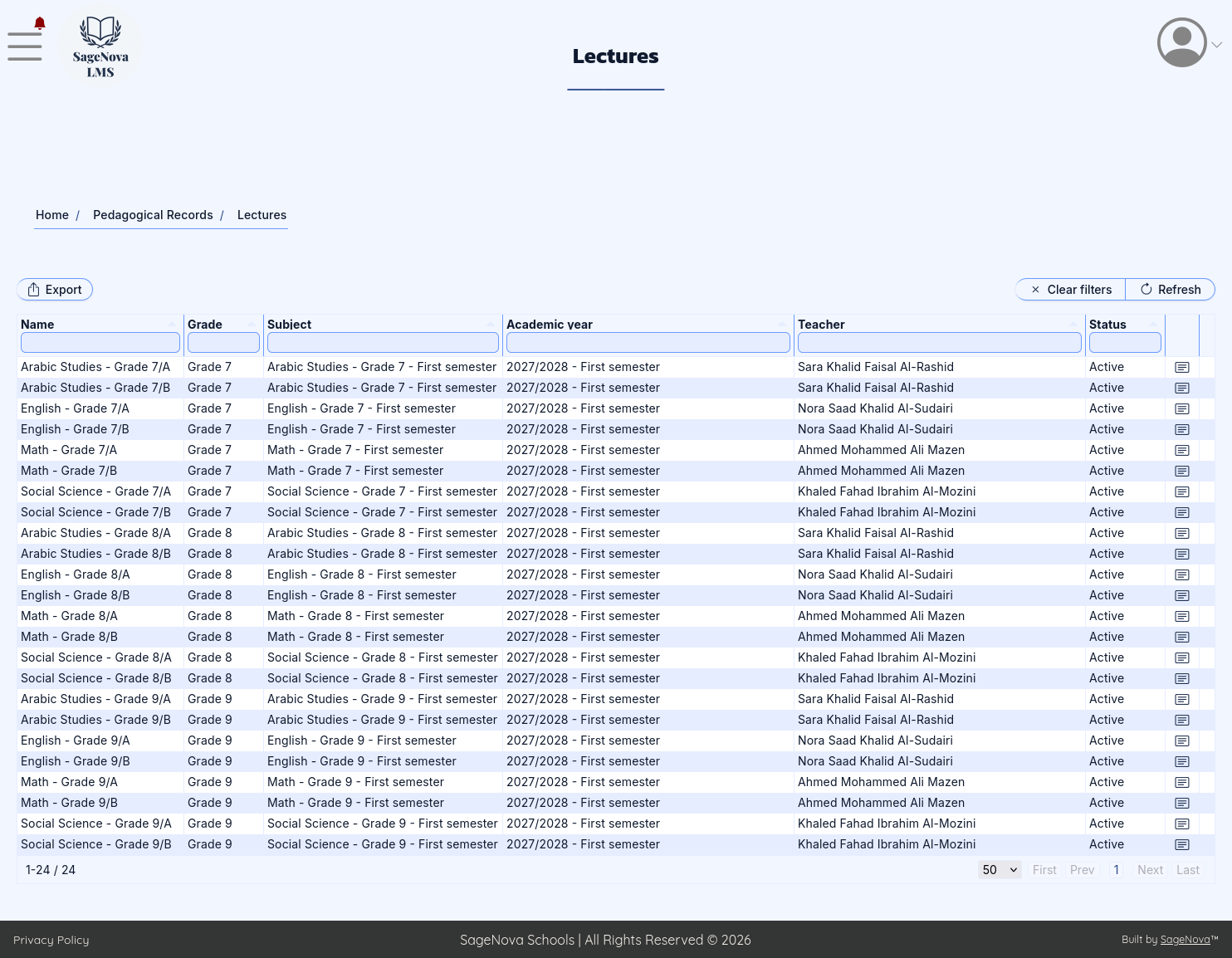
Exhibit 1.1: Lecture records table.
Fields you can edit
When you are assigned as a primary teacher or assistant teacher for a lecture, you can update these fields:
- Name (Text): A unique, defining name for the lecture.
- Extra information (Text): Additional details about the lecture.
- Teaching assistants (User Picker): Students with limited teacher privileges. Their submissions require teacher approval.
- Assistant teachers (User Picker): Additional teachers; can be set to audit for read-only access.
- Individual students (User Picker): Students not in the lecture's classes; can be set to audit for read-only access.
About assistant teachers
Assistant teachers are additional help in managing classes and lectures. They can post announcements, upload study material, grade challenges, and perform other teaching tasks — just like primary teachers.
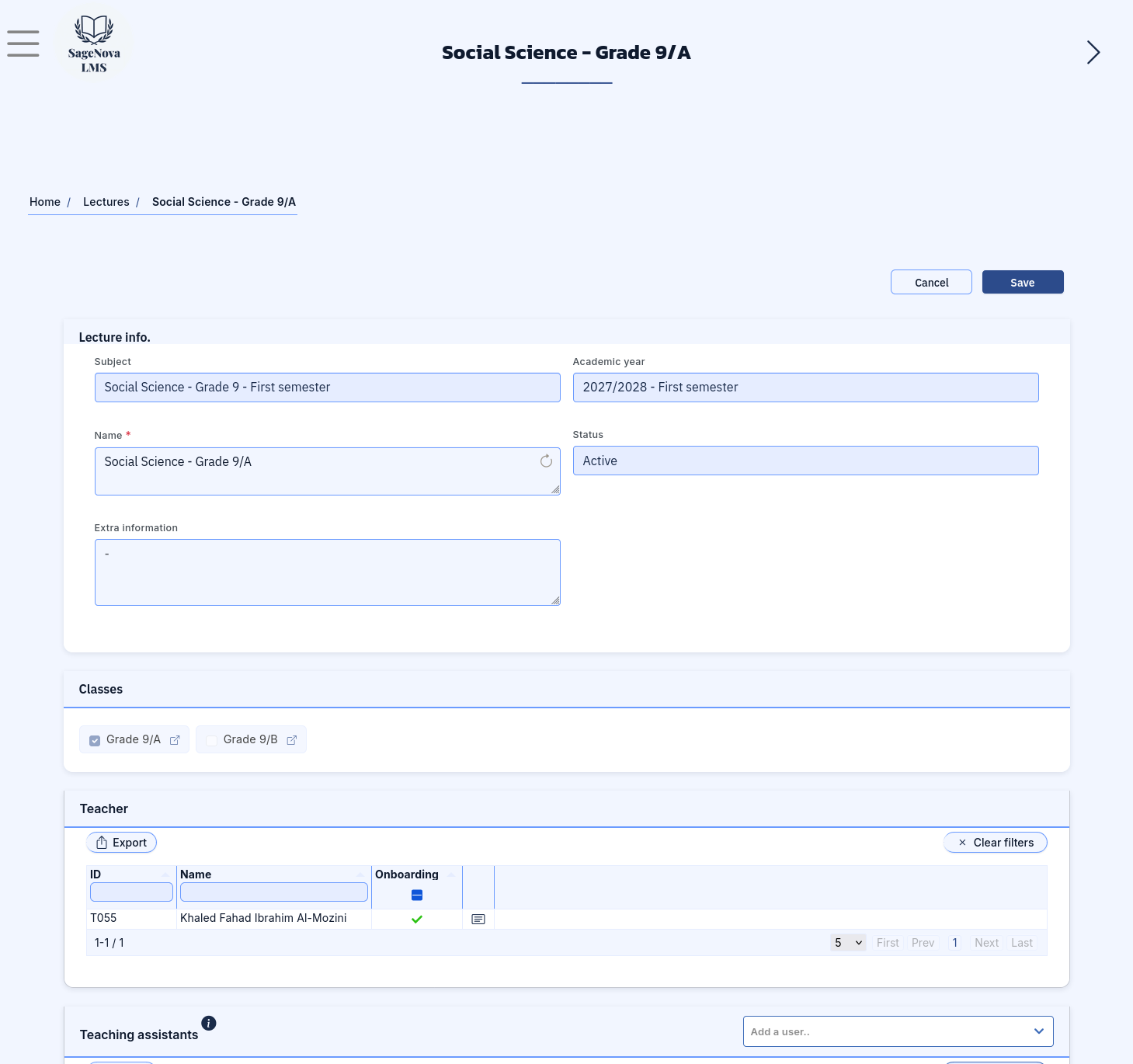
Exhibit 1.2: Lecture record user pickers for teachers, teaching assistants, and students.
Read-only fields
Subject, Academic Year, Status, Classes, and Primary teachers.
Note
To edit read-only fields, contact the system admin.
Class records
Classes group students. You can view, filter, sort, and export the classes list.
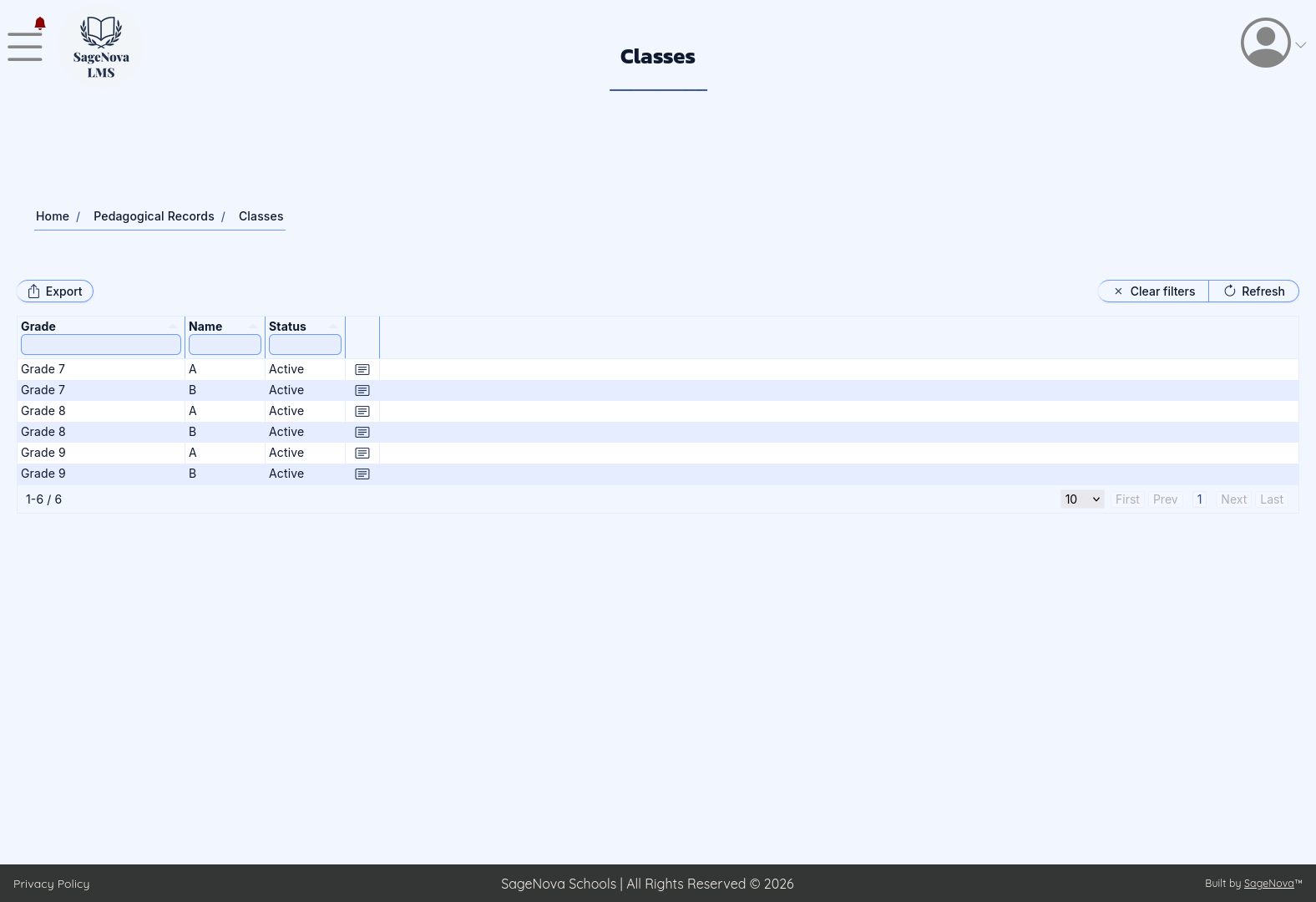
Exhibit 1.3: Classes records table.
Fields you can edit
- Assistant teachers (User Picker): Primary teachers of an active or draft class can add or remove assistant teachers.
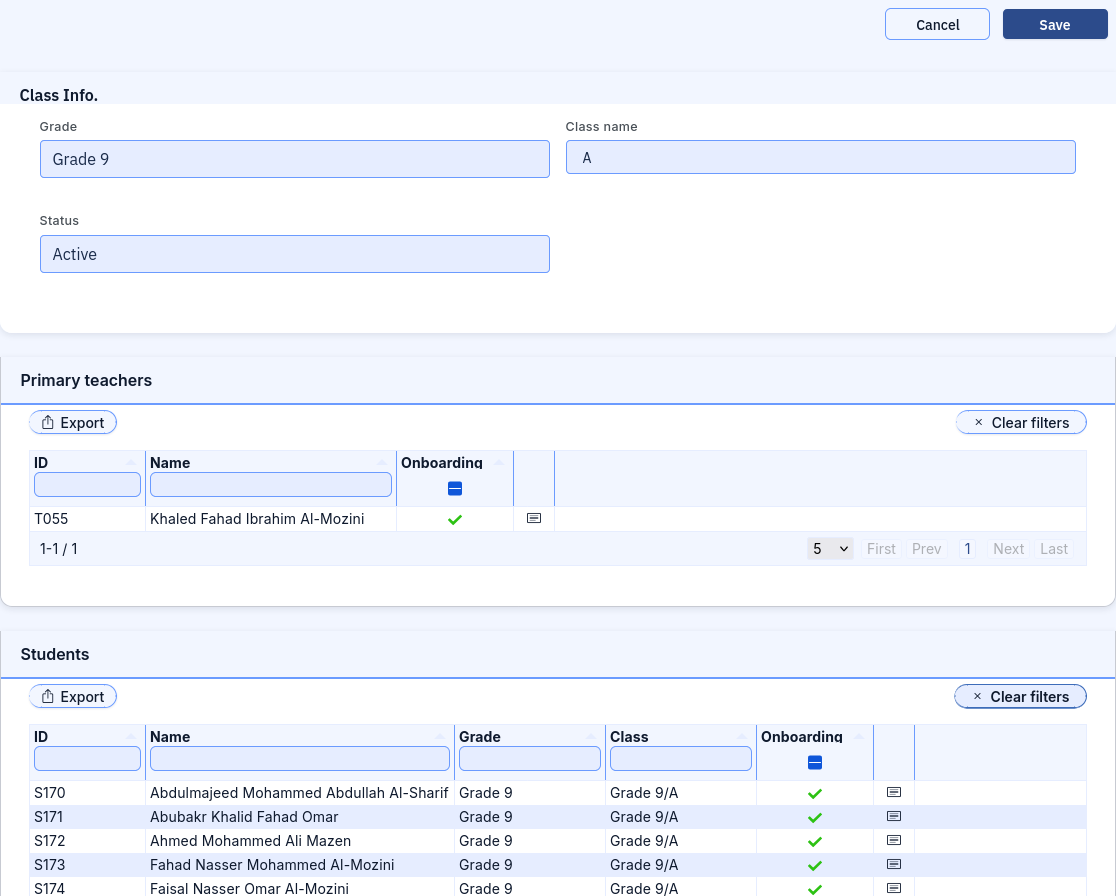
Exhibit 1.4: The class page displays information about the class, such as grade, students, teachers, etc.
Read-only fields
- Grade, Name, Status, Students, Primary teachers, and Lectures are read-only for all teachers.
- Assistant teachers is read-only for assistant teachers; the class primary teacher can edit this picker.
Note
To edit read-only fields, contact the system admin. To change the Assistant teachers list, contact the class primary teacher.
Editing records of your class students
When you open a School user record for one of your class students, you can edit the following:
- Email — typically used to set the address and trigger account activation.
- Household — add or update guardian relationships.
Subject records
Subjects are non-temporal course labels used for lectures. Teachers can view and export the subjects list, but subjects are managed by school admins.
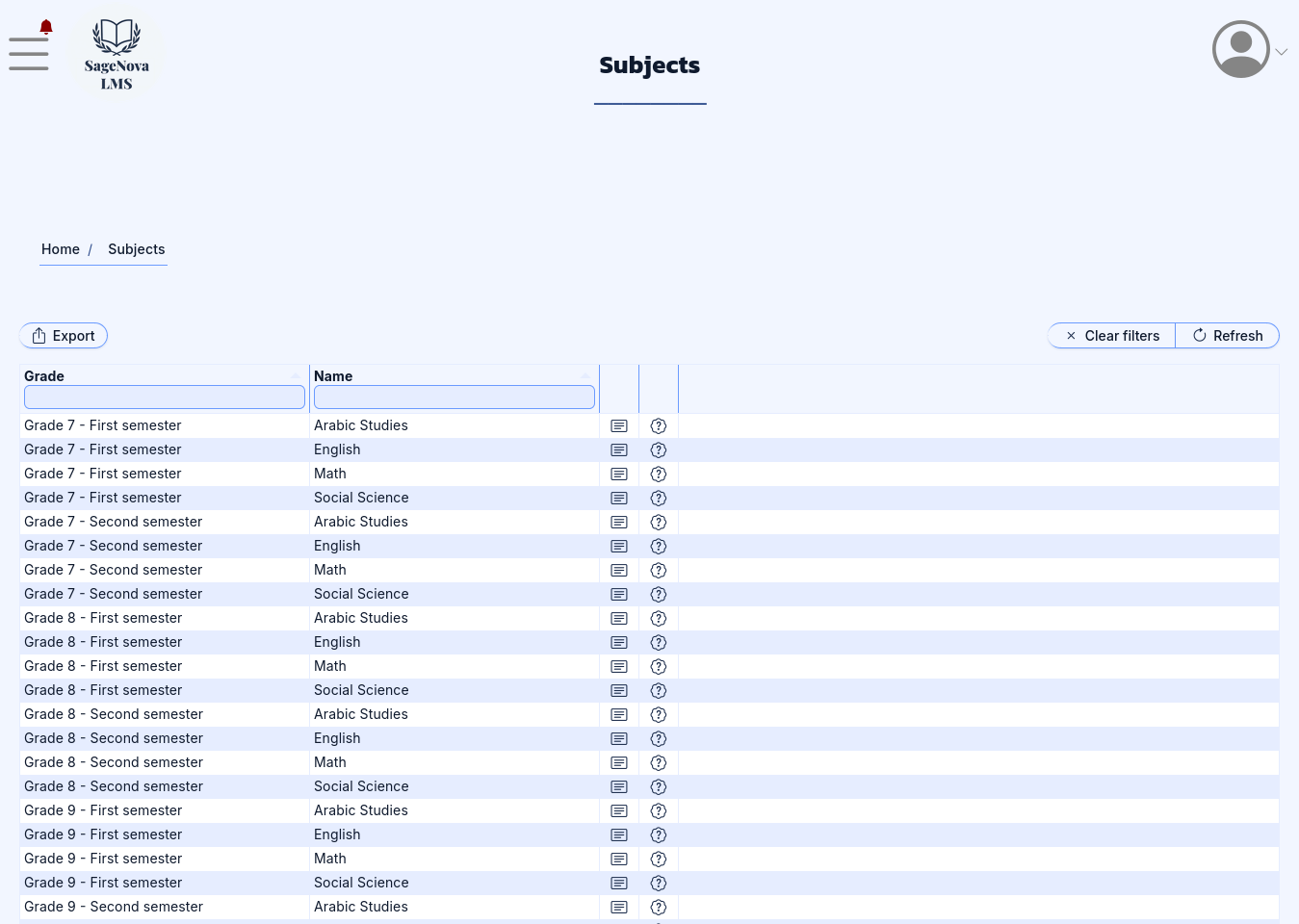
Exhibit 1.5: Subject records table.
Fields
- Grade (Drop-down)
- Name (Text): e.g., Science, History
- Description (Text): Additional information
Additional resources
Tutorials
Share documents, links, and notes with a lecture's students.
Assemble questions from a test bank and publish an assessment to students.
 References
What teachers can view and edit for school user records.
How the three submission-list statuses work and combine.