Submission, Grading, and Release statuses
The Submissions list uses three related status columns to show where each student's attempt is in the submission, grading, and grade-release workflow.
- Submission status describes whether the student has submitted an attempt.
- Grading status describes whether all questions in a delivered attempt have been graded.
- Release status describes whether the grade report is still being prepared, is ready for release, or has been released to the student.
Access the Submissions list
- Open the challenge whose submissions you want to review.
- Open the challenge page's off-canvas menu.
- Select Submissions.
The Submissions item opens the list for the current challenge. It is available to the lecture's teachers and teaching assistants. When the challenge has more than one class, it expands into a submenu with one entry per class, plus All classes — select a class to display that class's submissions.
Note
Auditing teachers can open the Submissions list in view-only mode, but actions that change grades or release reports are unavailable.
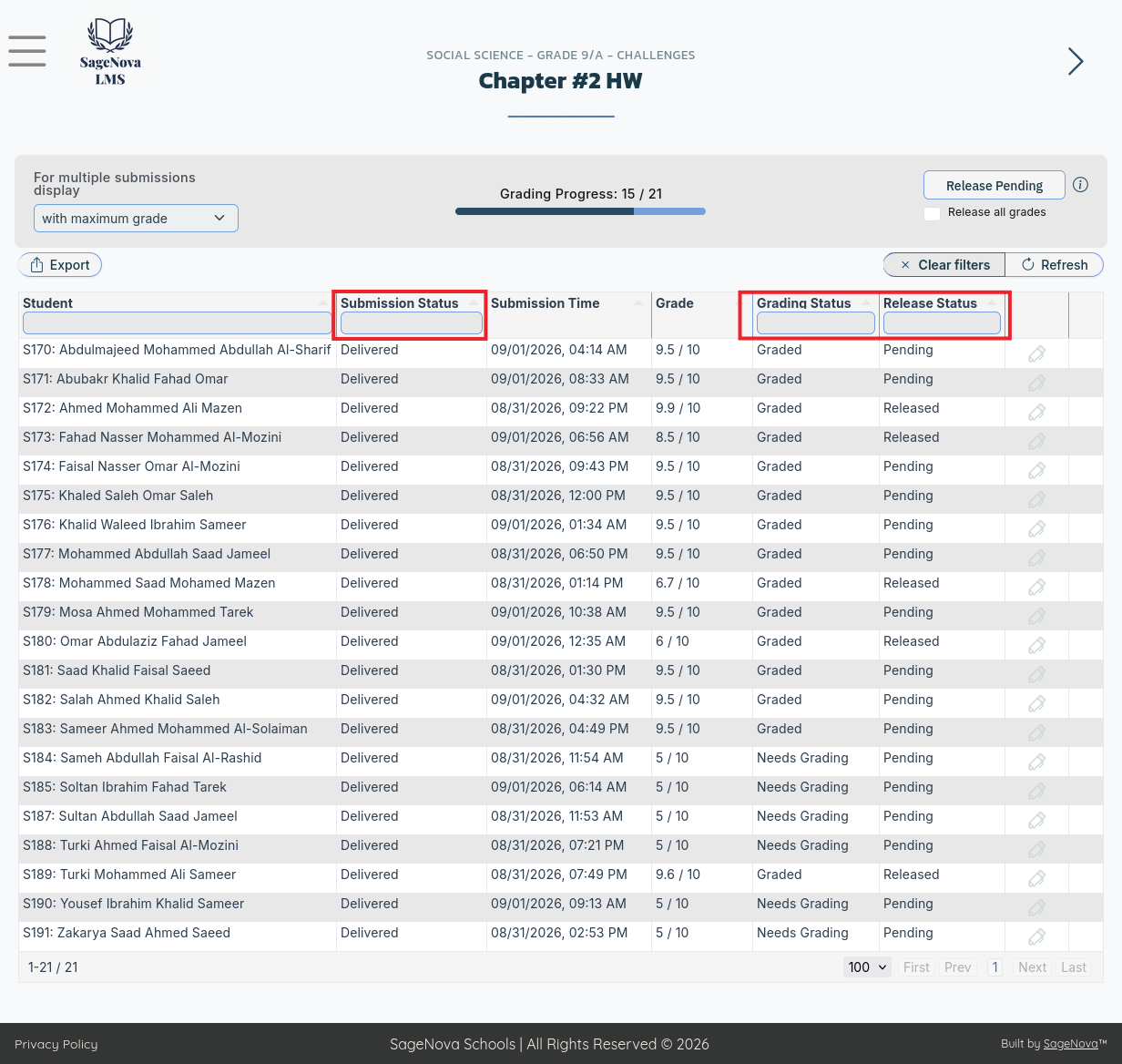
Exhibit 10.1: The Submissions list presents the three statuses for each student attempt.
Submission status
| Status | Meaning |
|---|---|
| Delivered | The student deliberately submitted the attempt. |
| Ongoing | The system automatically saved the attempt, but the student has not deliberately submitted it. |
| Not started/Not submitted | Both statuses indicate the student has no attempt. However, Not started is used when the challenge is ongoing and before the deadline, while Not submitted is displayed when the challenge has been fulfilled. |
Info
The Not submitted filter includes both Not started and Not submitted rows.
Grading status
| Status | Meaning |
|---|---|
| Graded | Every question in a delivered attempt has a grading status of Automatic or Manual. |
| Needs grading | At least one question in a delivered attempt has not been graded. |
| — | Grading does not yet apply. This is shown for ongoing, not-started, and not-submitted attempts, including after their grades are released. |
The Grading progress indicator counts rows classified internally as Graded or Needs grading.
Note
When multiple submissions are allowed, progress is calculated using each student's maximum-grade submission.
Release status
This status reflects grade report releases to students.
| Status | Meaning |
|---|---|
| Grading | The delivered attempt still needs grading. |
| Pending | The delivered attempt is fully graded and ready for the teacher to release. |
| Released | The grade has been released to the student. |
| Submitting | The attempt is ongoing, not started, or not submitted. A row in any of these states remains in this internal stage until a zero grade is released. |
| Submaximal | The student has more than one delivered, graded attempt, and this unreleased attempt earned fewer points than the student's highest-scoring graded attempt. |
Typical status combinations
| Situation | Submission status | Grading status | Release status |
|---|---|---|---|
| Delivered attempt still has ungraded questions | Delivered | Needs grading | Grading |
| Delivered attempt is fully graded | Delivered | Graded | Pending |
| Delivered grade has been released | Delivered | Graded | Released |
| Student has an automatically saved attempt | Ongoing | — | Submitting |
| Student has not started an active challenge | Not started | — | Submitting |
| Challenge is fulfilled without a student submission | Not submitted | — | Submitting |
| Ongoing, not-started, or not-submitted grade has been released | Current submission status | — | Released |
| Lower-scoring graded attempt in a multiple-submission challenge | Delivered | Graded | Submaximal |
Releasing grades

Exhibit 10.2: The controls for viewing submission attempts, monitoring grading progress, and releasing grades.
Select Release pending to release delivered attempts whose release status is Pending.
Tip
Once the challenge is fulfilled, release all grades, including Not submitted submissions. Select Release all grades below the release button. This releases zero grades for students who have not started or submitted and the last saved grades for ongoing attempts. The application asks for confirmation before proceeding.
Tip
When multiple submissions are allowed, select with maximum grade to focus the list on the highest-scoring attempt for each student, or display all submissions to review every attempt.
If more than one delivered attempt is graded, only a highest-scoring attempt remains active for normal pending release; lower-scoring unreleased attempts are marked Submaximal.
Additional resources
Tutorials
Assemble questions from a test bank and publish an assessment to students.
Review submissions, adjust scores, and release grade reports.
Record scores for activities completed outside SageNova LMS.
 References
Detailed reference for every challenge setting and preset.